
Why Web Accessibility Matters for Your Shopify Store
Over 1.3 billion people worldwide live with disabilities, making web accessibility essential for eCommerce success. For Shopify merchants, compliance with ADA and WCAG 2.1 standards not only reduces legal risk but also expands your customer base, improves user engagement, and boosts conversions.
Introducing Accessify: The AI-Powered Shopify Accessibility Solution
Accessify is an intelligent AI accessibility widget built specifically for Shopify stores. Unlike basic accessibility plugins, Accessify uses AI-driven adaptation to dynamically respond to each visitor’s needs, improving accessibility performance, engagement, and conversion rates without slowing your website.
Install Accessify in Two Simple Ways
Choose the Shopify accessibility installation method that best fits your needs:
- Shopify App Integration: Install the Accessify app directly from the Shopify App Store in one click. No coding required. Your store becomes accessible instantly.
- Custom Code Integration: Add a lightweight JavaScript snippet to your theme’s header or footer for greater customization, branding control, and advanced analytics.
Both methods activate your Shopify accessibility widget in minutes.
How to Install Accessify: Shopify App Integration Method
Follow these simple steps to install and activate the Accessify AI Accessibility – ADA & WCAG App on your Shopify store for improved accessibility.
Step 1: Access the Shopify App Store
Log into your Shopify Admin Dashboard.
In the left sidebar, click Apps and Sales Channels, then select the Shopify App Store.
The Shopify App Store is your gateway to powerful apps, including accessibility tools like Accessify, that enhance your store’s performance and user experience.
Step 2: Search for “AI Accessibility – ADA & WCAG”
In the App Store search bar, type “AI Accessibility – ADA & WCAG.”
Find the AI Accessibility – ADA & WCAG App in the results and click it to open the product page. Review its detailed features, customer reviews, and pricing before installation.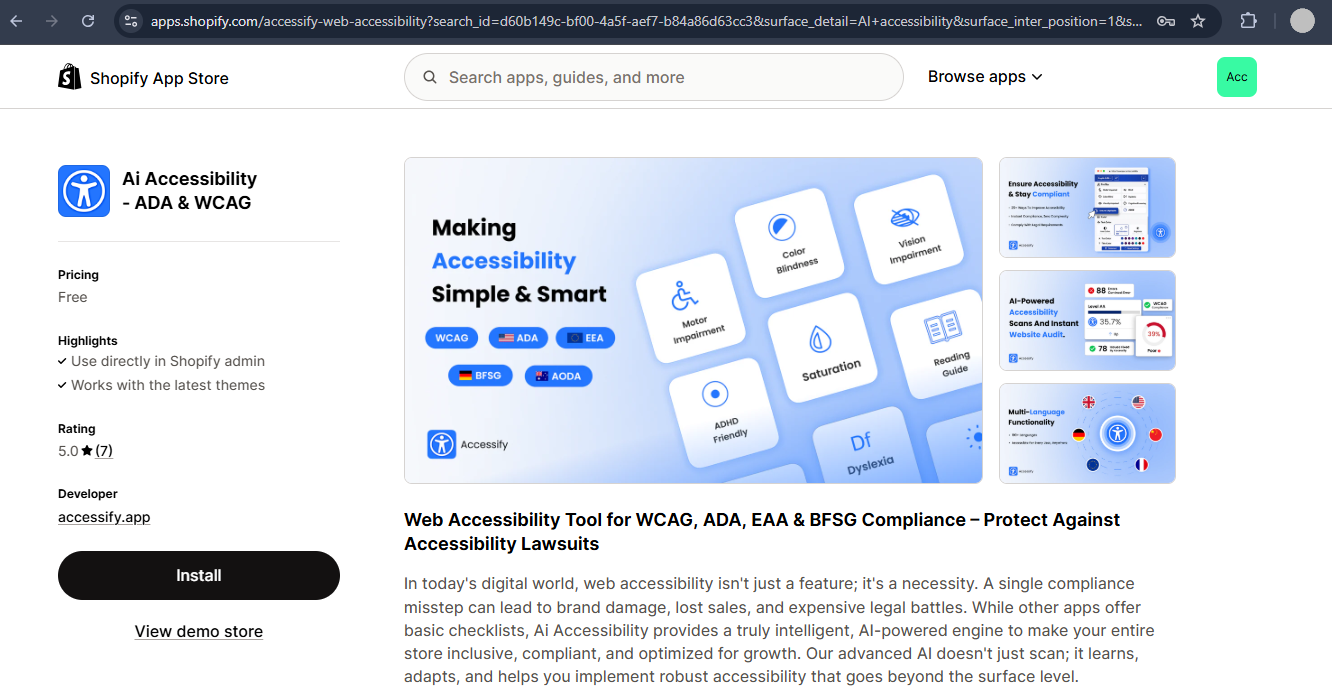
Step 3: Install the Accessibility App
Click the Install App button on the Accessify product page.
Shopify will show a list of required permissions, review them carefully and click Install to proceed.
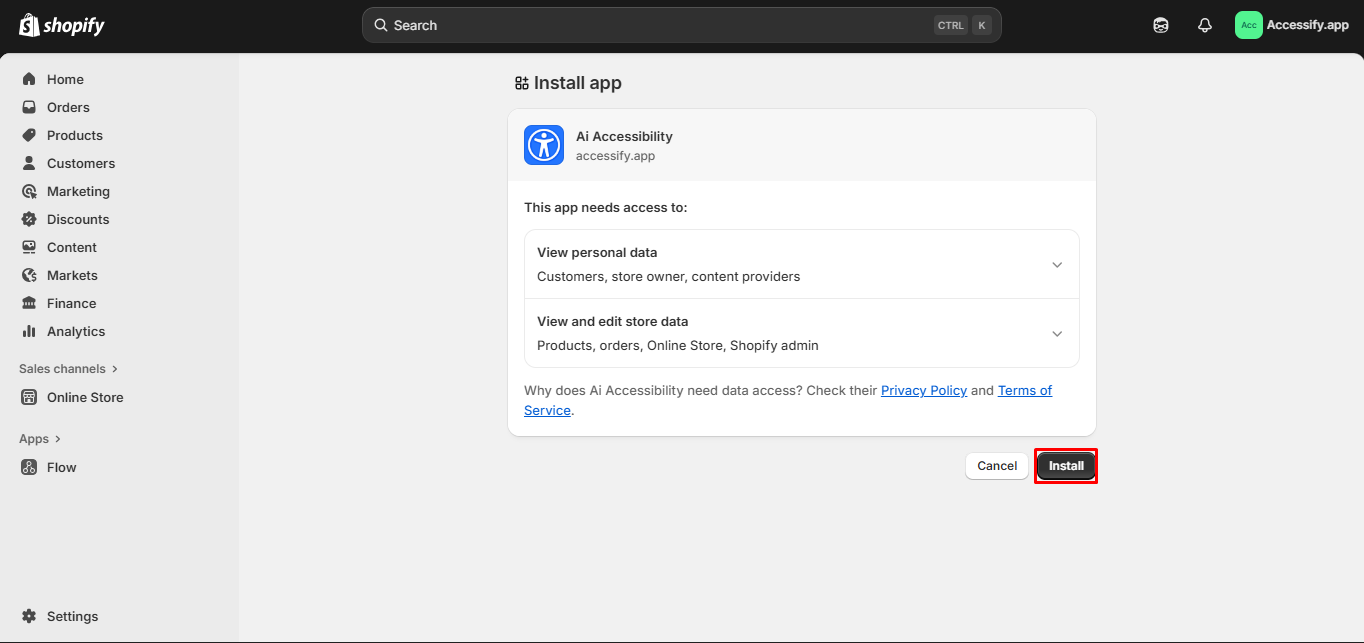
The installation completes within seconds, and your Accessify accessibility widget activates automatically. Simply enable the theme app extension by clicking the Add Widget button, and your store will instantly meet ADA and WCAG compliance standards.
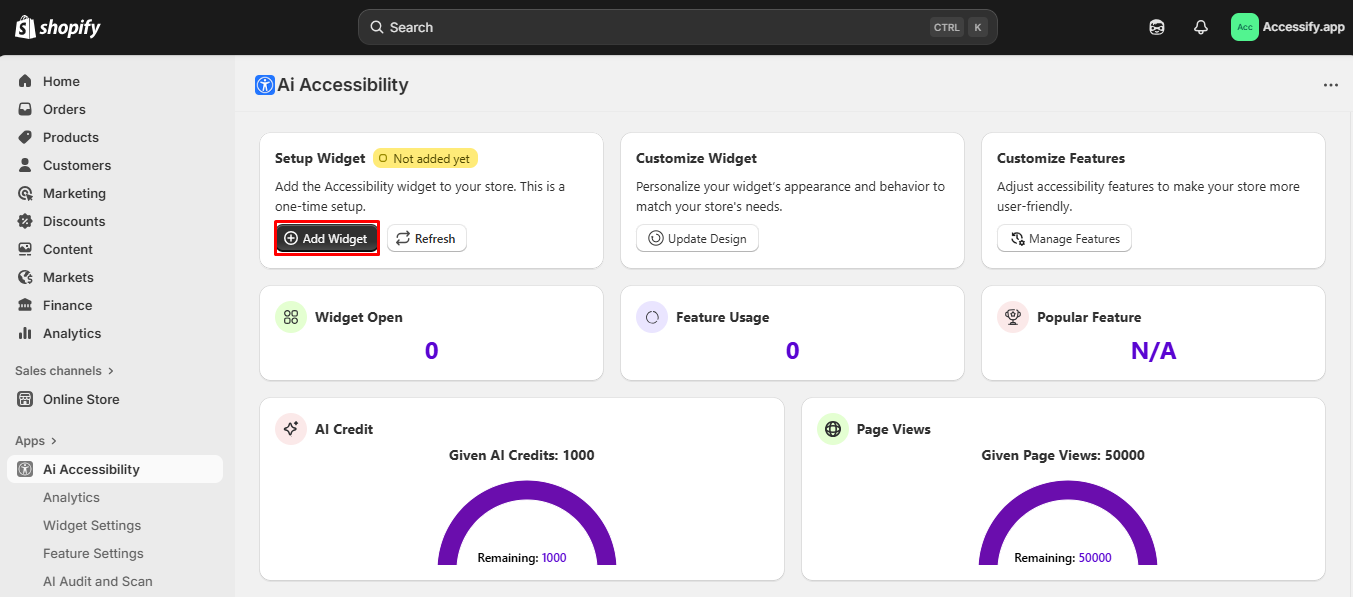
Step 4: Access the Accessify Dashboard
After installation, you’ll be redirected to the Accessify App Dashboard, where you can:
- Enable or disable specific accessibility features
- Customize the widget’s design, position, and colors
- Configure accessibility preferences for your visitors
- Monitor analytics and user interaction data for optimization
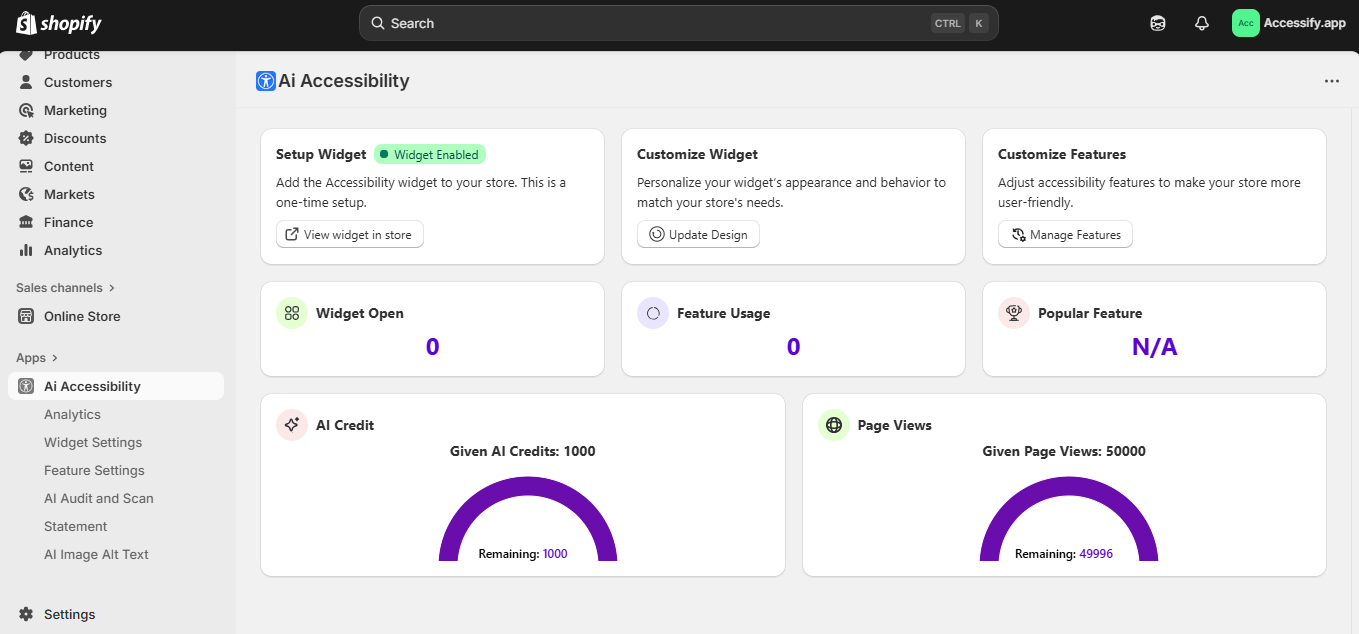
Step 5: Verify the Accessify Widget Installation
Visit your Shopify storefront to confirm that the Accessify accessibility widget is visible and fully functional.
Test its features, like text resizing, color contrast, and keyboard navigation, to ensure your site is inclusive and user-friendly.
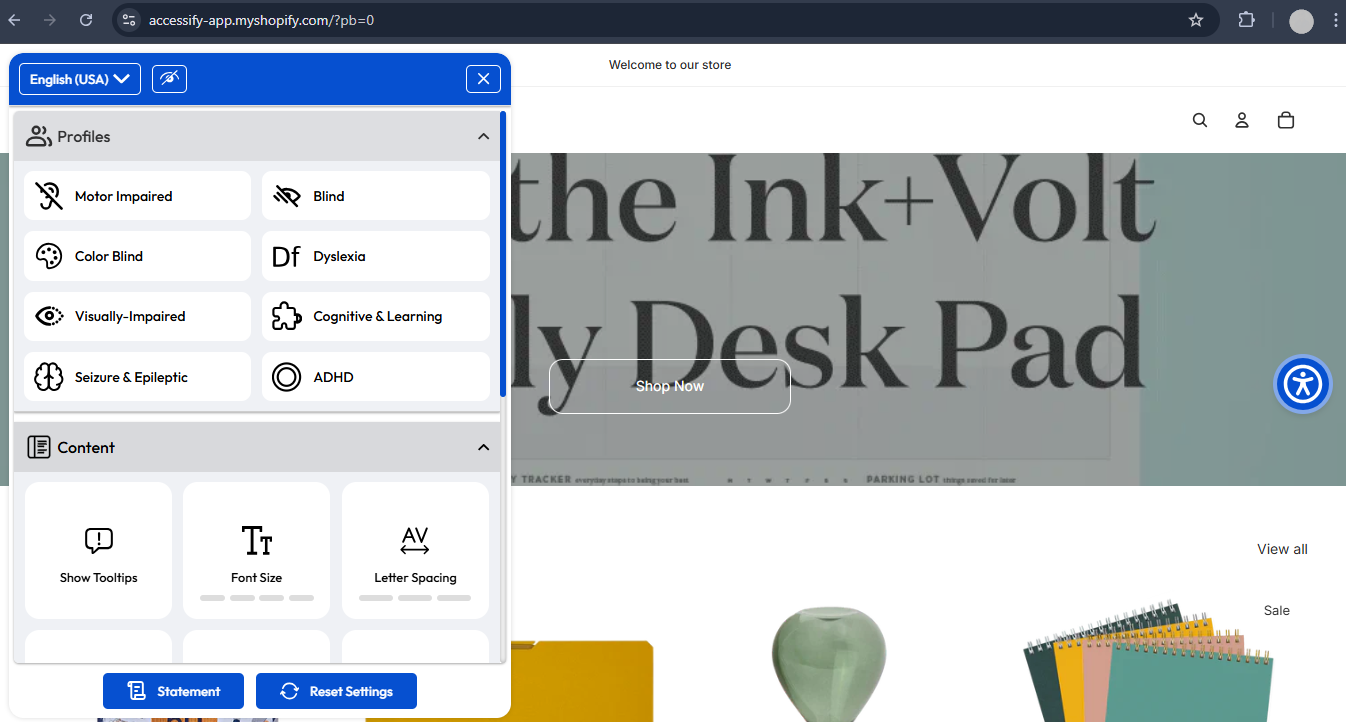
By following these steps, your Shopify accessibility widget will provide a seamless, compliant experience for all users, enhancing engagement, inclusivity, and brand trust.
How to Install Accessify: Custom Code Integration Method
Follow this detailed guide to manually install Accessify’s AI-powered Accessibility Widget using a custom code snippet. This method offers developers and agencies full control over widget placement, customization, and performance, ensuring complete ADA and WCAG compliance.
Step 1: Visit Accessify Dashboard
Go to accessify.app and log in to your account.
If you don’t have one, sign up to create a new account. This gives you access to your personalized Accessify Dashboard, where you can manage all accessibility configurations.
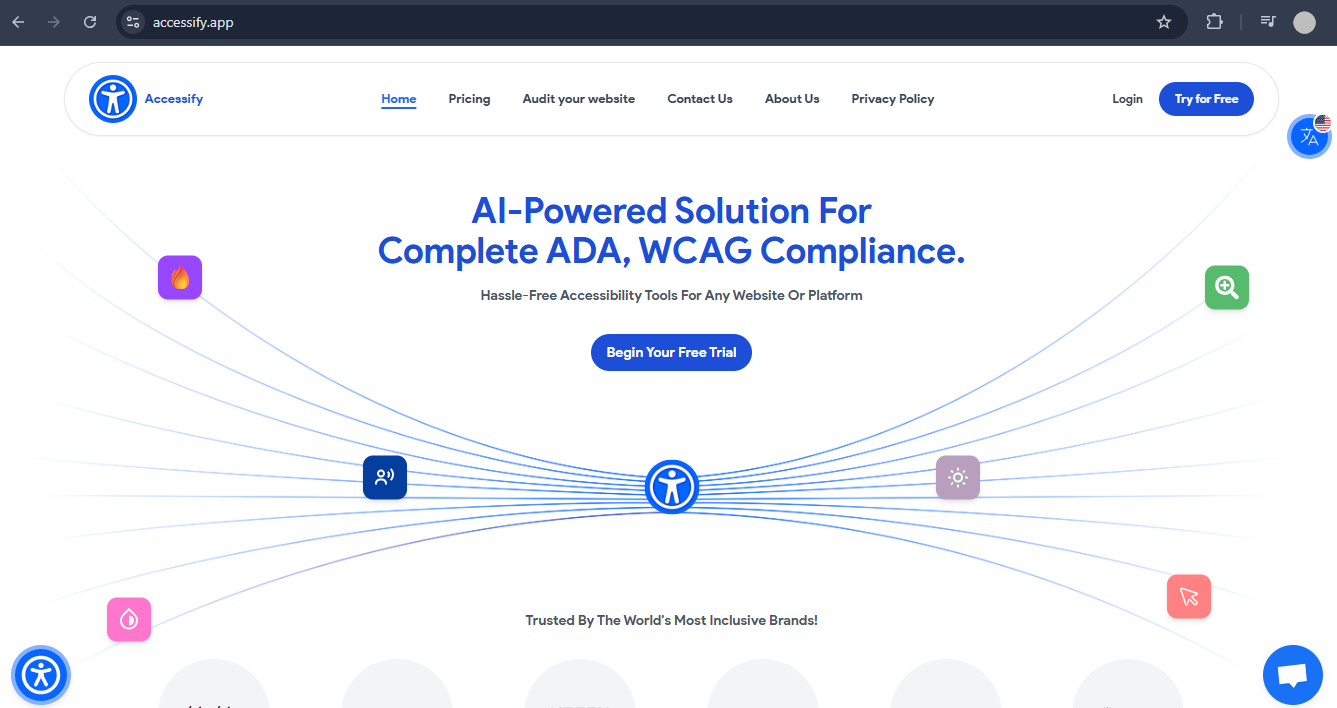
Step 2: Access Manage Dashboard
After logging in, visit manage.accessify.app.
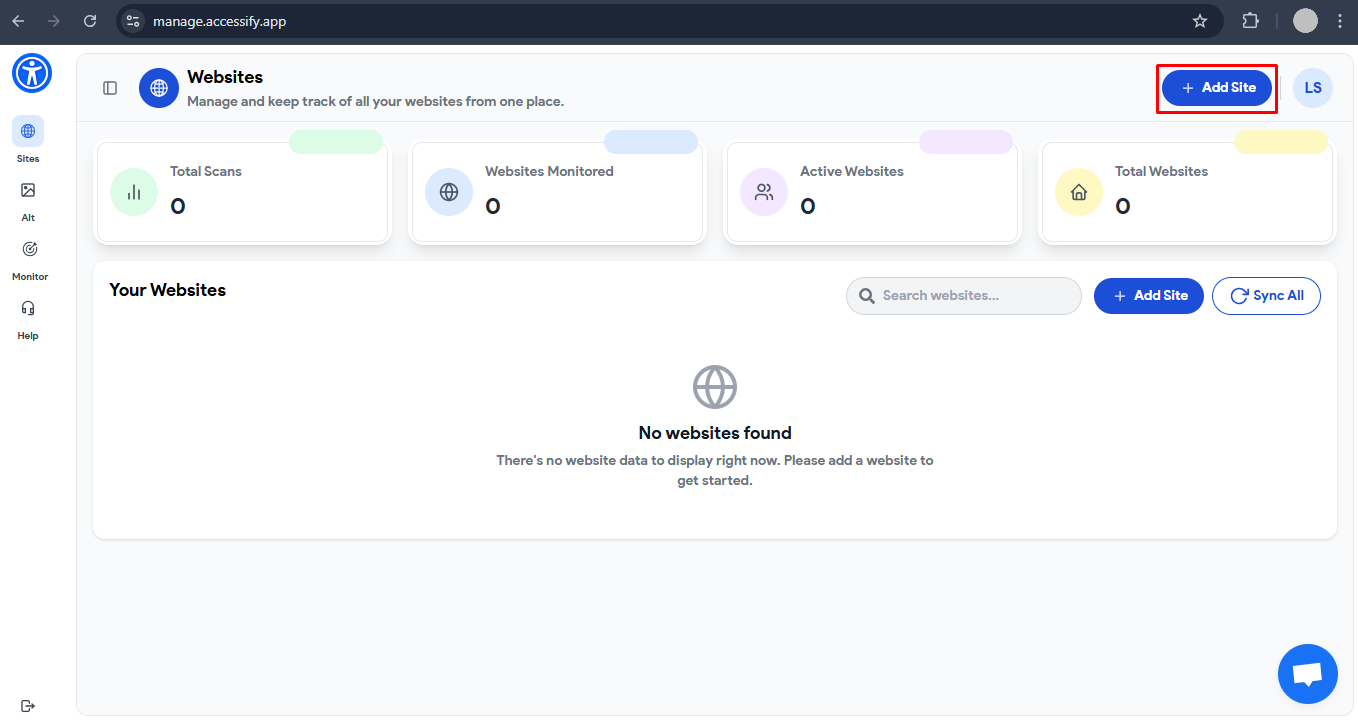
Here, add your website and manage your Accessify widget configuration. Enter your Shopify store URL to create a new property for tracking and customization.

Step 3: Generate and Copy the Widget Code
From the dashboard, copy your custom Accessify widget code snippet.
This JavaScript snippet is unique to your Shopify store and includes your personalized accessibility settings. Copy the entire code, you’ll need it in the next step.
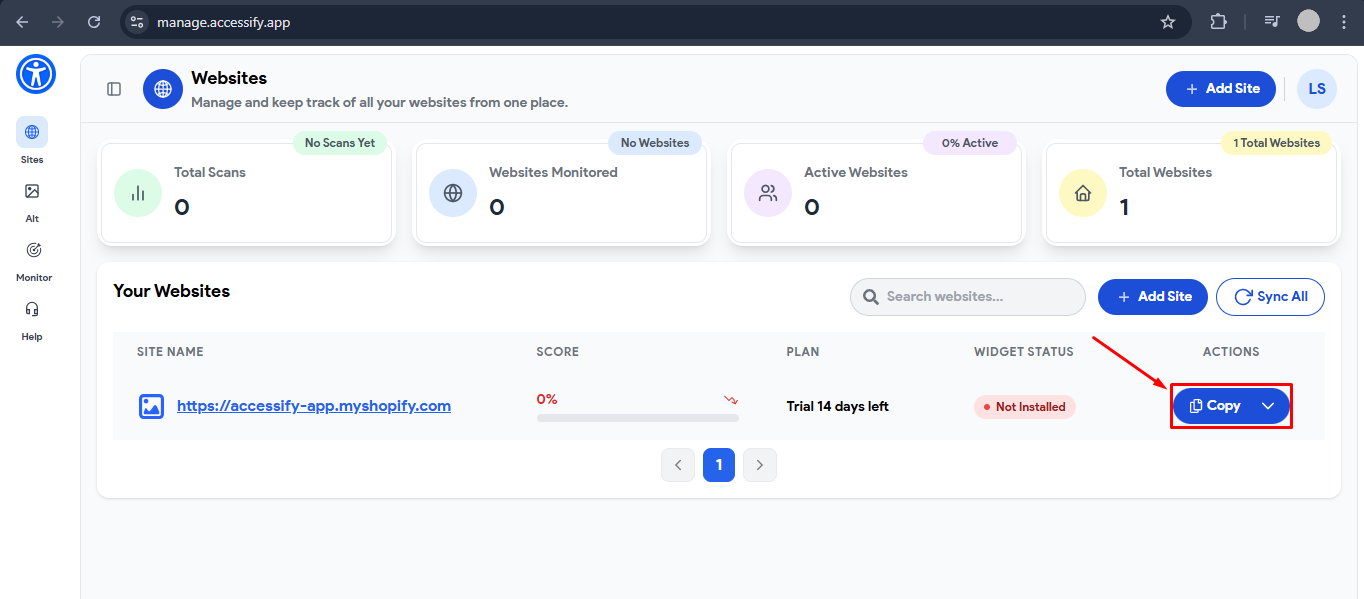
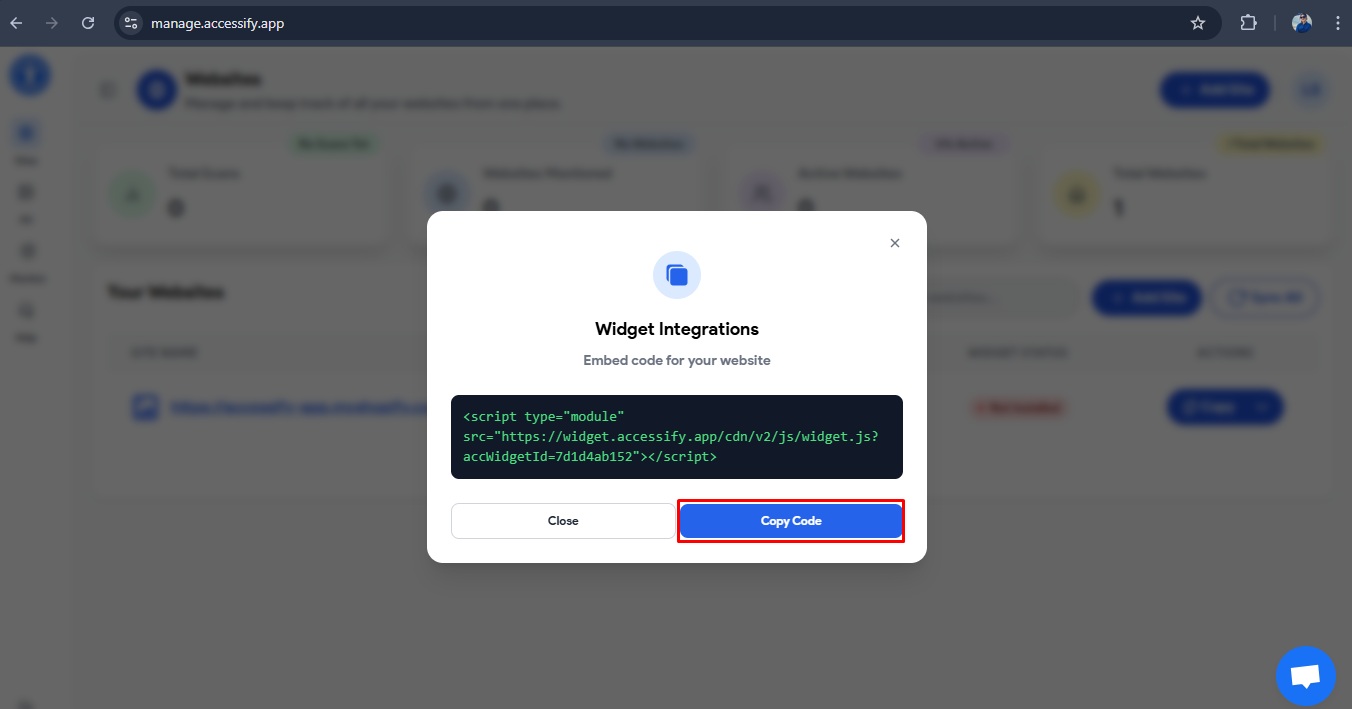
Step 4: Access Shopify Theme Editor
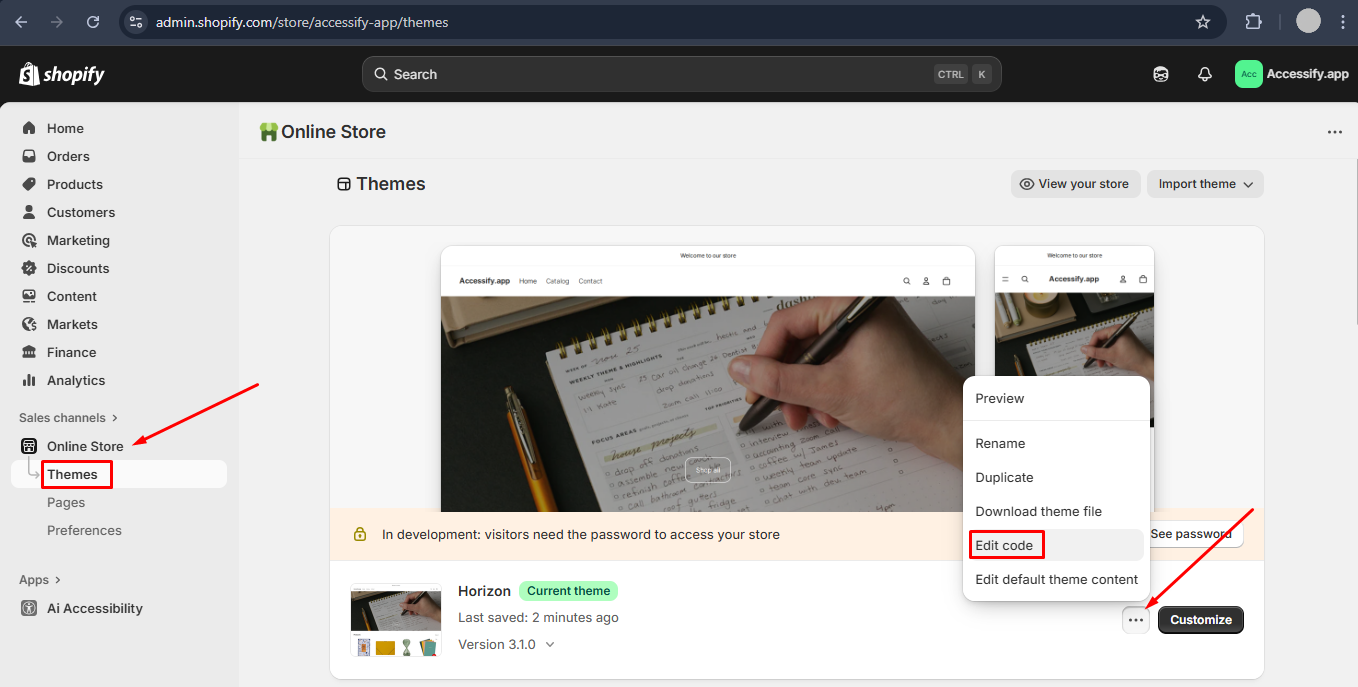
Log into your Shopify Admin Dashboard.
Go to Online Store → Themes, find your active theme, click the three dots, and select Edit code to open Shopify’s built-in editor.
Step 5: Locate the theme.liquid File
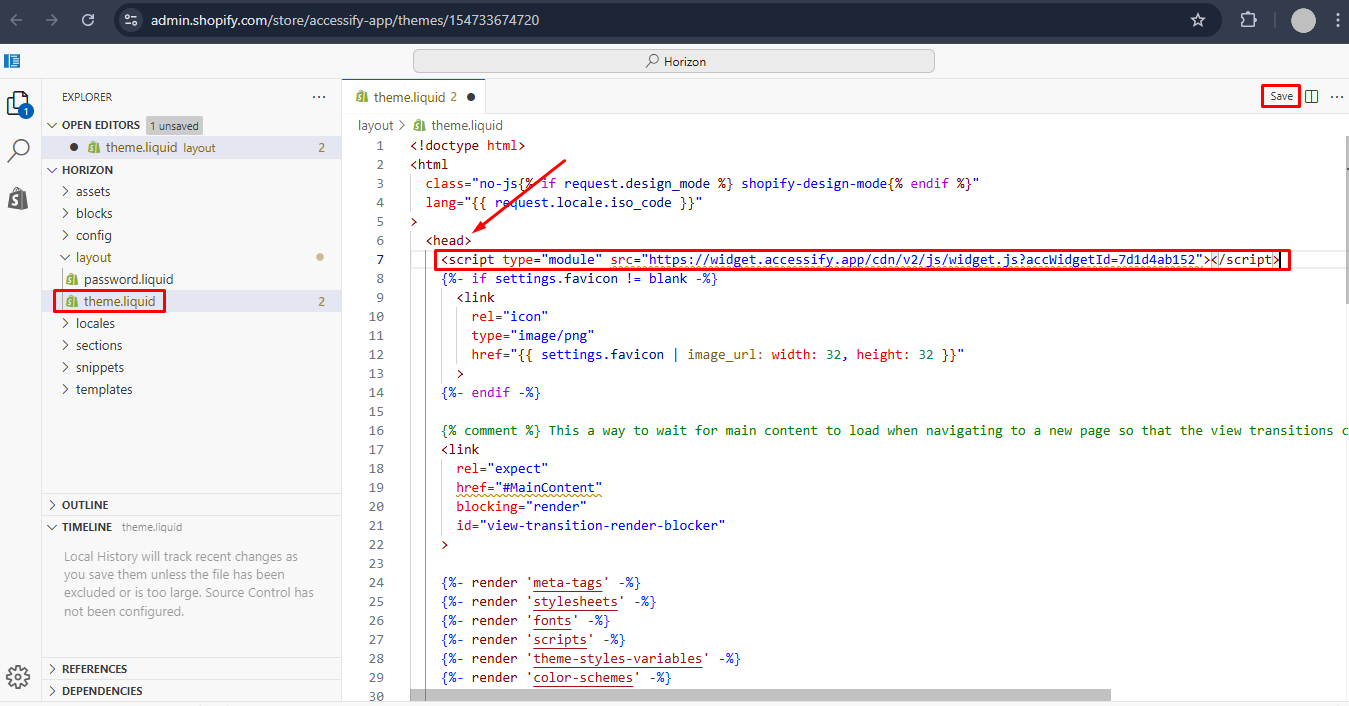
In the code editor, open the theme.liquid file under the Layout folder.
This file defines your store’s global structure and is the correct place to embed your Accessify accessibility script.
Step 6: Paste the Code in the Header or Body Section
Press Ctrl + F (Windows) or Cmd + F (Mac) to find <head> or </body>.
- Recommended: Paste the Accessify code just above the
</head>tag for optimal loading performance. - Alternatively, insert it above the
</body>tag if preferred.
Make sure you add the code on a new line and don’t delete or alter existing code.
Step 7: Save Your Changes
Click Save in the top-right corner of the editor to apply your modifications.
Your Shopify store will now automatically load the Accessify accessibility widget across all pages.
Step 8: Verify the Widget is Active
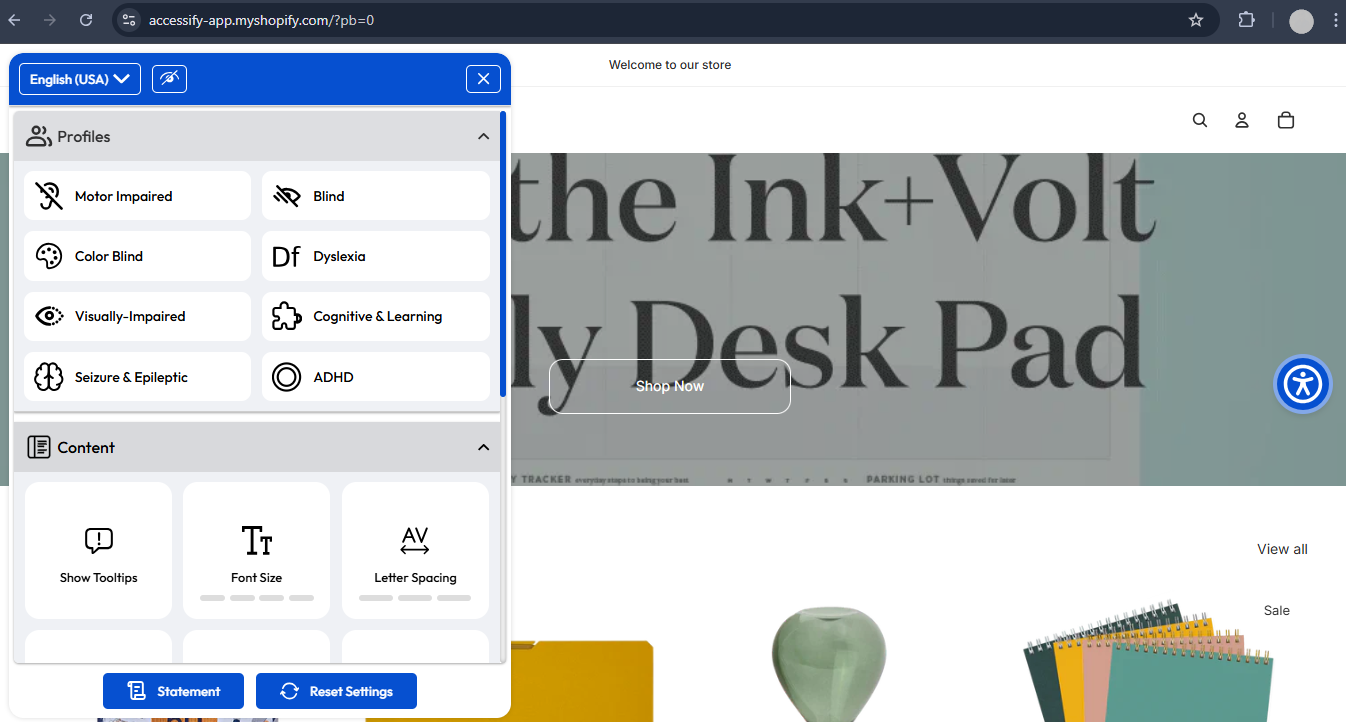
Open your Shopify storefront and verify that the Accessify widget appears and functions correctly.
Try out key accessibility features, like keyboard navigation, text resizing, and color contrast adjustments, to ensure full compliance.
Step 9: Customize Widget Settings (Optional)
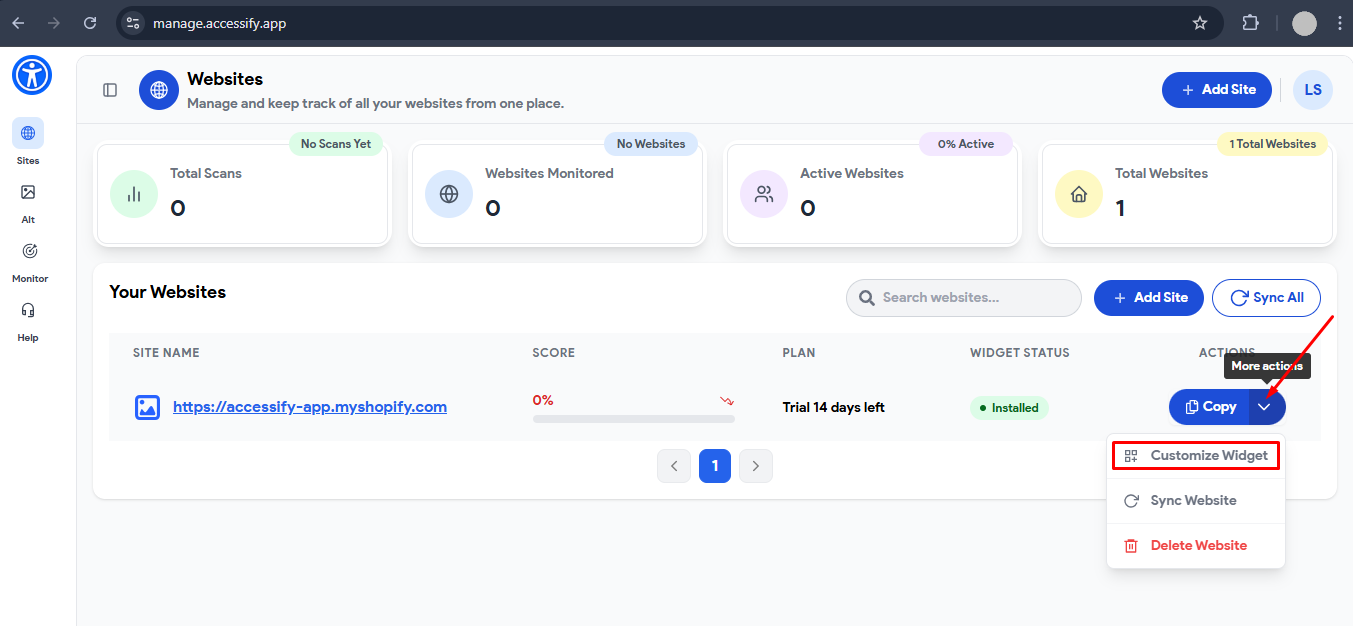
Go back to manage.accessify.app to fine-tune your widget. You can:
- Adjust the widget’s appearance and placement
- Enable or disable individual accessibility features
- Optimize settings to match your brand identity and layout
Your Shopify store is now equipped with Accessify’s AI-powered accessibility protection. Visit your Shopify storefront to verify that the Accessify Accessibility Widget is properly displayed and functioning as intended. Test essential accessibility features such as text resizing, color contrast adjustments, and keyboard navigation to ensure your website remains ADA-compliant, SEO-friendly, and delivers a seamless, inclusive browsing experience for all users.
This custom code installation method gives you maximum flexibility, faster load performance, and full control over how accessibility is integrated, ensuring your online store remains inclusive, and optimized for all users.