
Accessibility basics are essential for creating digital content that is accessible to everyone. Understanding these fundamentals will change how you design and teach inclusive content. This knowledge applies to both new website designers and educators who prioritize inclusive design.
This guide breaks down complex accessibility concepts into clear, actionable steps. You’ll see how different users engage with digital content, learn about assistive technologies, and master key principles to make your work more inclusive.
Quick Summary
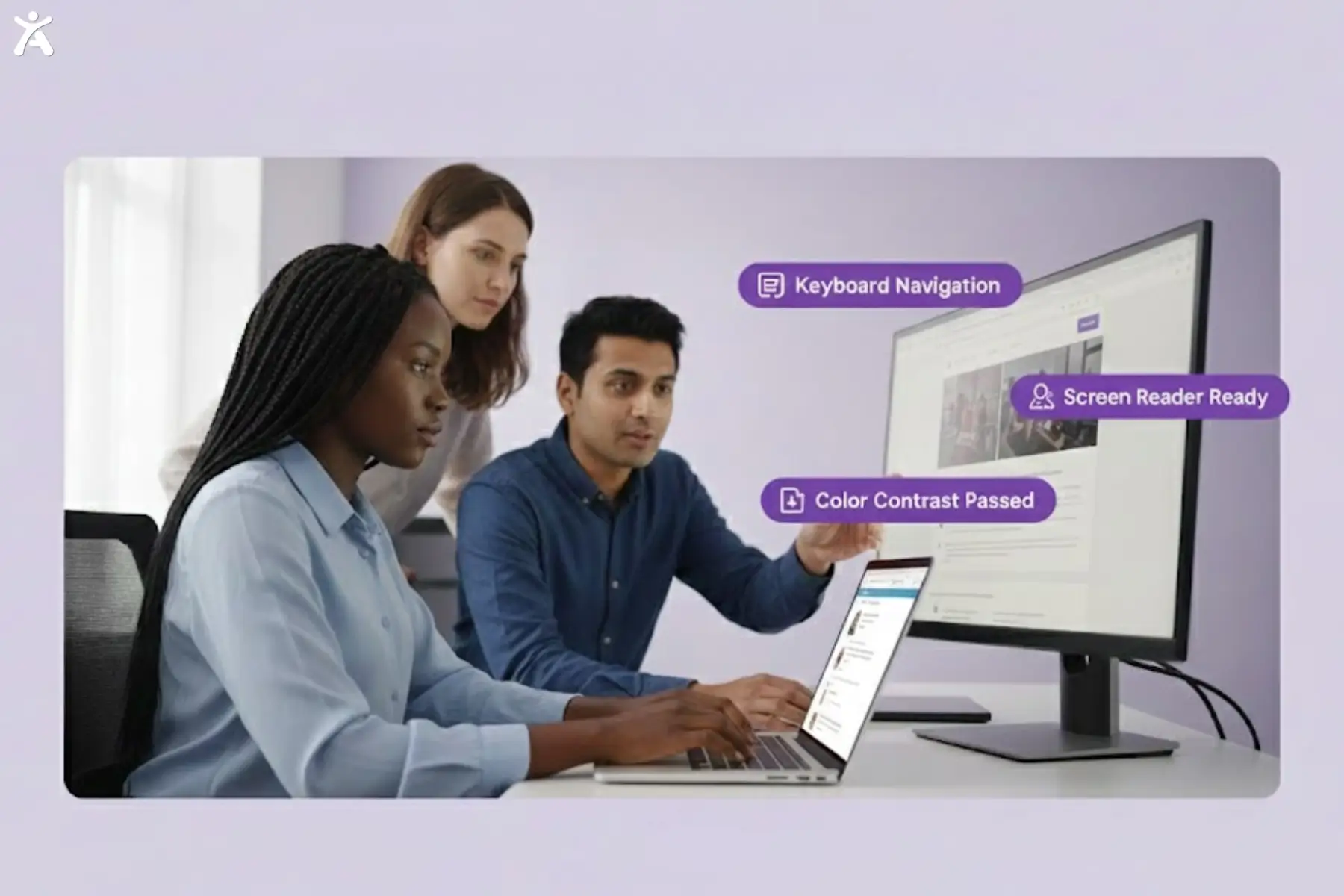
Digital accessibility enables everyone to access and use websites, apps, and content. Accessibility includes people with disabilities. Key elements of digital accessibility involve using proper headings, providing alternative text (alt text) for images, ensuring sufficient color contrast, and enabling keyboard navigation.
The Web Content Accessibility Guidelines (WCAG) help make online experiences more inclusive. Using tools like screen readers is key to achieving this. Begin with easy checks. Use automated tools with caution. Remember, accessibility is a journey, not a quick fix.
Why Does Digital Accessibility Matter Today?
Digital accessibility has evolved from a nice-to-have feature to a fundamental need. Making content accessible helps millions who use assistive technology to browse the web.
What is Digital Accessibility?
Digital accessibility enables everyone to access, understand, and use websites, apps, and content with ease, including people with disabilities. It covers users with visual impairments, hearing loss, mobility challenges, and cognitive differences. For readers seeking a foundational overview, consider our blog on A11Y meaning and web accessibility, which provides a clear introduction to how accessibility principles work in practice.
The World Wide Web Consortium established that accessible design benefits everyone. Captions help users in noisy environments. Clear navigation assists people who multitask on mobile devices. Simple language makes complex topics understandable for all readers.
Why Accessibility Basics Go Beyond Compliance?
A customer layout must follow the Americans with Disabilities Act and Section 508. It also widens your audience and improves the user experience for everyone. Accessible websites enhance SEO performance and result in higher user satisfaction.
Consider this: temporary disabilities affect everyone at some point. A broken arm, for example, makes keyboard navigation essential. Eye fatigue from screen time can be alleviated by improving color contrast. Building with accessibility in mind creates flexible digital products that cater to diverse user needs. They can handle a variety of situations with skill.
How Do Different Users Navigate Digital Content?
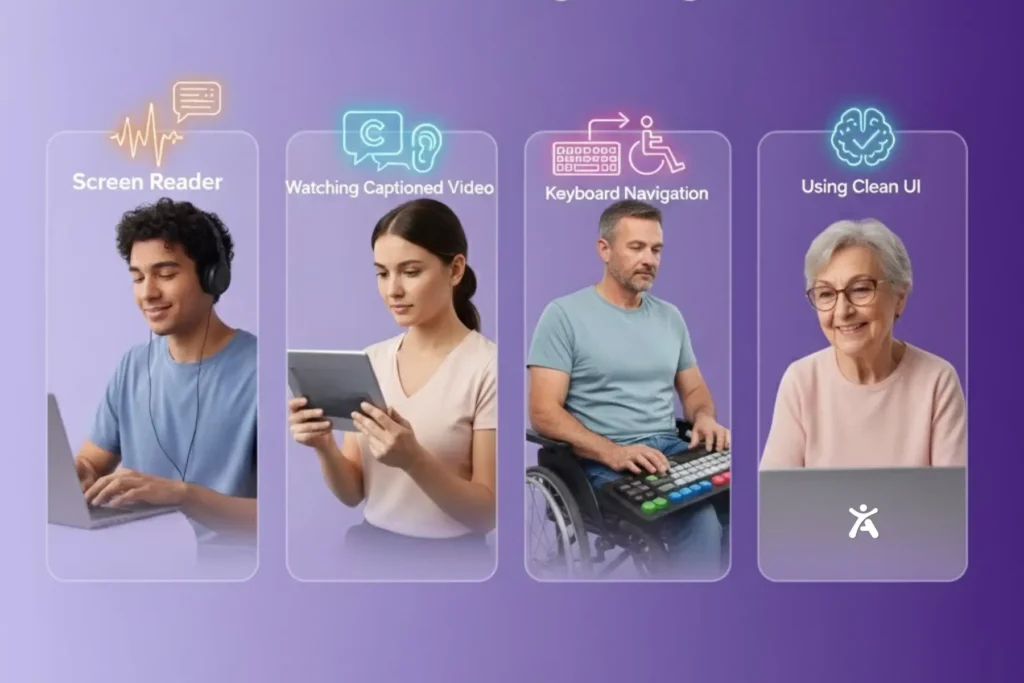
Understanding diverse user needs forms the foundation of effective accessibility practices. Each type of disability presents unique challenges and requires specific design considerations.
Visual Impairments
When you examine accessibility basics in action, visual impairments are typically the first area designers consider. Users with visual impairments depend on screen readers. These tools convert text into speech or braille. They use keyboard shortcuts. They also rely on a clear structure to understand content hierarchy.
Screen magnifiers help users with low vision by enlarging portions of the screen. These tools work best when the content has clear contrast. It shouldn’t rely only on color to share information. Users who are completely blind rely on:
- Alternative text for images
- Descriptive link text
- Logical tab order
Users often look for headings. Therefore, having a well-structured H1, H2, and H3 is crucial for easy content access.
Hearing Impairments
Deaf and hard-of-hearing users need visual alternatives to audio content. Video captions provide descriptions of dialogue and sound effects. Transcripts offer searchable text versions of audio content.
Sign language interpreters in videos help specific communities. Good visual design also aids all users in following the content flow, even without audio cues.
Mobility Impairments
Physical disabilities affecting hand or arm movement make mouse navigation challenging or impossible. These users rely on keyboard navigation, voice recognition software, or specialized assistive hardware.
All interactive elements must be reachable via keyboard. Tab order should follow a logical content flow, and focus indicators must be clearly visible. These features help users understand their location on the page.
Cognitive and Neurological Impairments
Individuals with learning differences, memory challenges, and attention disorders require a clear and simple design. Plain language, consistent navigation, and predictable layouts help users process information with clarity and ease.
Avoiding flashing content prevents seizures in photosensitive individuals. Providing many ways to complete tasks accommodates different cognitive processing styles.
Temporary and Situational Disabilities
Broken bones, eye surgery recovery, or medication effects create temporary accessibility needs. Bright sunlight and noisy spaces affect how users engage with digital content.
Designing for these situations makes your content usable in various real-world settings. Such environments include busy coffee shops and times of medical recovery.
What Assistive Technologies Should You Know?
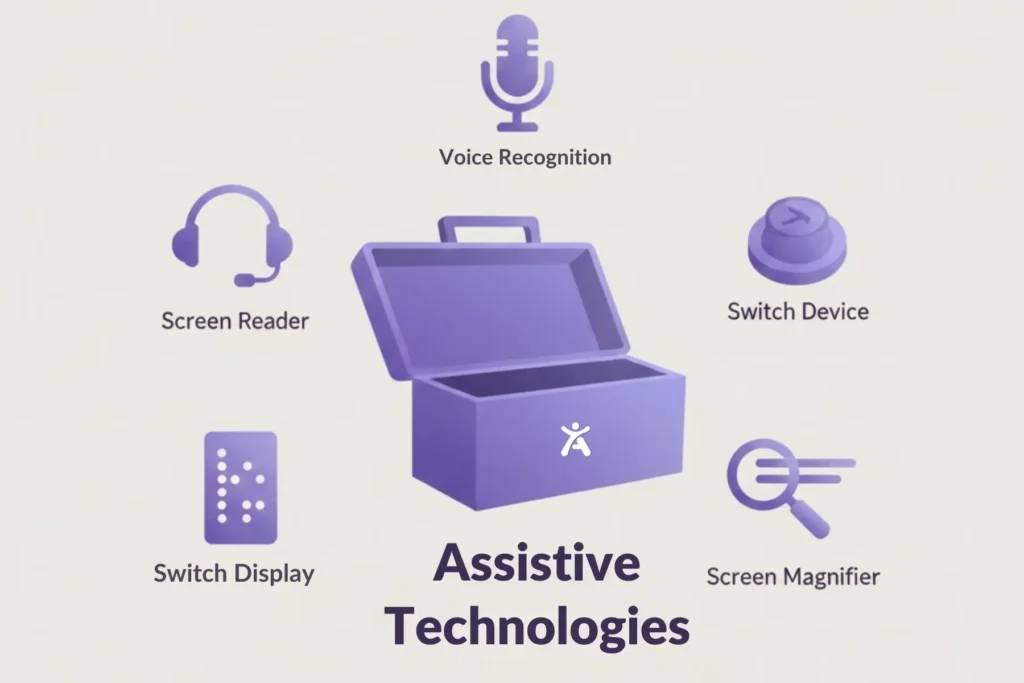
Assistive technology helps bridge the gap between users with disabilities and digital content by enabling them to access and interact with information more effectively. Understanding how these tools work and ensuring your website supports them through solutions like Accessify’s AI auto-remediation and continuous accessibility scanning enables you to create interfaces that are more compatible and inclusive.
How Screen Readers Work
Screen readers parse HTML code to create audio or braille output. They use semantic HTML elements and ARIA labels. These features help create a clear heading structure for easy navigation.
Popular screen readers include JAWS, NVDA, and VoiceOver. Each has unique features, but all depend on well-structured code for proper functioning. When you use proper headings and alt text, you provide direct support for these tools.
Keyboard Navigation
Many users depend only on keyboard shortcuts for navigation. The Tab key moves between interactive elements. The Enter key activates buttons and links. The Arrow keys navigate within complex widgets, like menus or sliders.
Your designs should have visible focus indicators. They must also follow a logical tab order. Include keyboard shortcuts for complex actions.
Other Common Assistive Technologies
Voice recognition software, such as Dragon NaturallySpeaking, converts speech to text and navigational commands. Switch devices allow users with limited mobility to control computers with ease through simple button presses.
Refreshable braille displays offer tactile text reading for individuals who are deaf-blind. Screen magnifiers and high-contrast settings help users with low vision see content better.
How Can You Create Accessible Content?
Core accessibility principles provide practical starting points for inclusive design, and many of these techniques form the foundation of accessibility basics.
Semantic Headings and Structure
The correct use of heading hierarchy (H1, H2, H3) enables screen readers to locate content with ease. Each page should contain a single H1, which serves as the main title. H2 headings mark major sections, while H3 headings denote subsections.
Don’t skip heading levels. Use headings for their intended purpose, not for styling. This structure helps users understand how they organize content. It helps users of assistive technology. It also benefits those who scan for specific information promptly.
Descriptive Alternative Text for Images (Alt Text)
Alt text describes image content for users who can’t see visuals. Write concise, descriptive text that conveys the image’s purpose and essential information. Decorative images can have empty alt attributes (alt=””).
For complex graphics, such as charts or diagrams, add longer descriptions nearby. You can also use expandable content for more details. Alt text should blend with the surrounding text without interruption.
Accessible Links (Hyperlinks)
Link text should clearly indicate the destination or action it leads to. Avoid generic phrases like “click here” or “read more.” Use clear phrases like “download the accessibility checklist” or “view project examples.”
Links should remain distinguishable from regular text through more than color. Underlines, bold text, or other visual indicators help users identify interactive elements.
Captions, transcripts, and audio descriptions for multimedia.
Video content needs captions that include dialogue, speaker identification, and relevant sound effects. Transcripts provide searchable text versions of audio content.
Audio descriptions narrate visual elements in videos for users who are blind. These descriptions fill in natural pauses in dialogue. They show actions, settings, and visuals that are key to understanding.
Color Contrast and Visual Design
Text and background colors must meet WCAG contrast requirements. Normal text needs a 4.5:1 ratio, while large text (18 pt+ or 14 pt+ bold) requires a 3:1 ratio. Use contrast checker tools to verify your color combinations.
Don’t rely only on color to convey information. Use icons, text labels, or patterns in conjunction with color coding. These methods help all users distinguish between different elements.
Plain Language and Readability
Write with clarity and conciseness, using familiar words and short sentences. Break up long paragraphs with subheadings, bullet points, and white space. Define technical terms or don’t use glossaries for specialized content to enhance clarity and understanding.
Plain language helps everyone. It supports users with cognitive disabilities and busy professionals. They often look for information during their lunch breaks at nearby cafés.
Keyboard-Accessible Forms and Interactive Elements
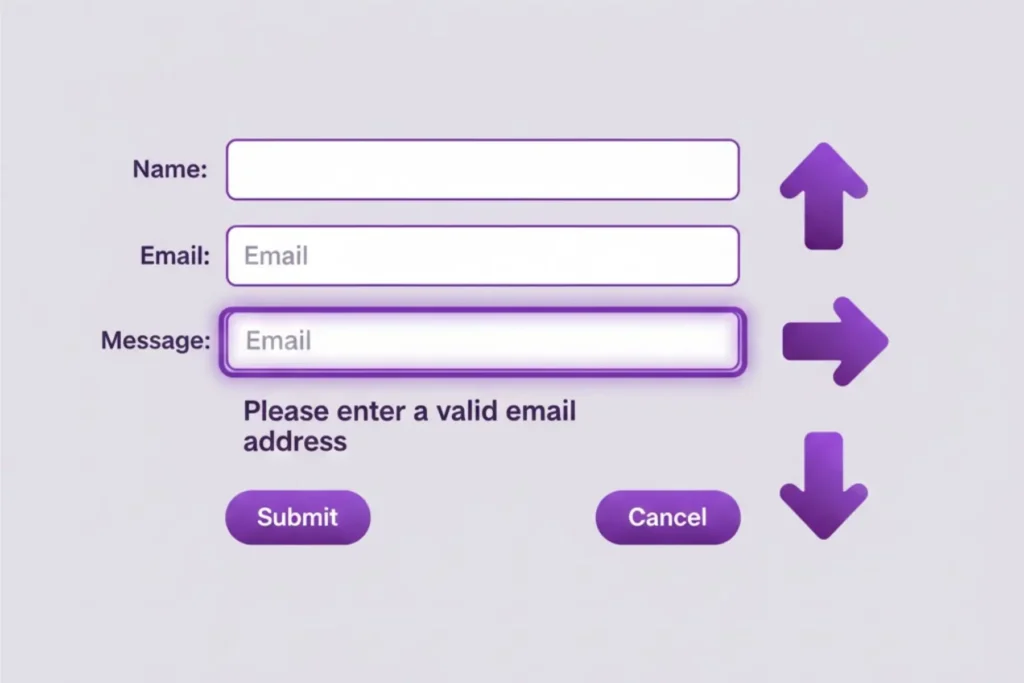
Form fields need clear labels and a logical tab order. Error messages should provide a clear explanation of the problem and suggest a solution. Required fields must have clear markings.
Interactive elements, such as dropdown menus and sliders, need keyboard support. They also must have clear instructions to guide users. Provide many ways to complete complex tasks when possible.
What Accessibility Basics Guide Accessibility Practice?
Established guidelines and legal requirements provide frameworks for accessible design. Understanding these standards helps you create content that is inclusive in every instance.
Web Content Accessibility Guidelines (WCAG)
WCAG, from the World Wide Web Consortium, sets the global web accessibility standard. The current version, WCAG 2.1, has three conformance levels: A, AA, and AAA.
Many organizations strive for AA compliance. This level incorporates key accessibility features and eliminates complex technical requirements. These guidelines apply to websites, mobile apps, and digital documents.
Relevant Laws and Regulations
Laws such as Section 508 and the Americans with Disabilities Act ensure that digital content is accessible to all individuals with disabilities. These laws apply to government agencies and public places. State regulations, like the Minnesota Human Rights Act, extend these requirements further.
International standards vary by country, but most follow WCAG principles. Understanding your local requirements helps ensure legal compliance alongside inclusive design.
How Should You Test and Improve Accessibility?
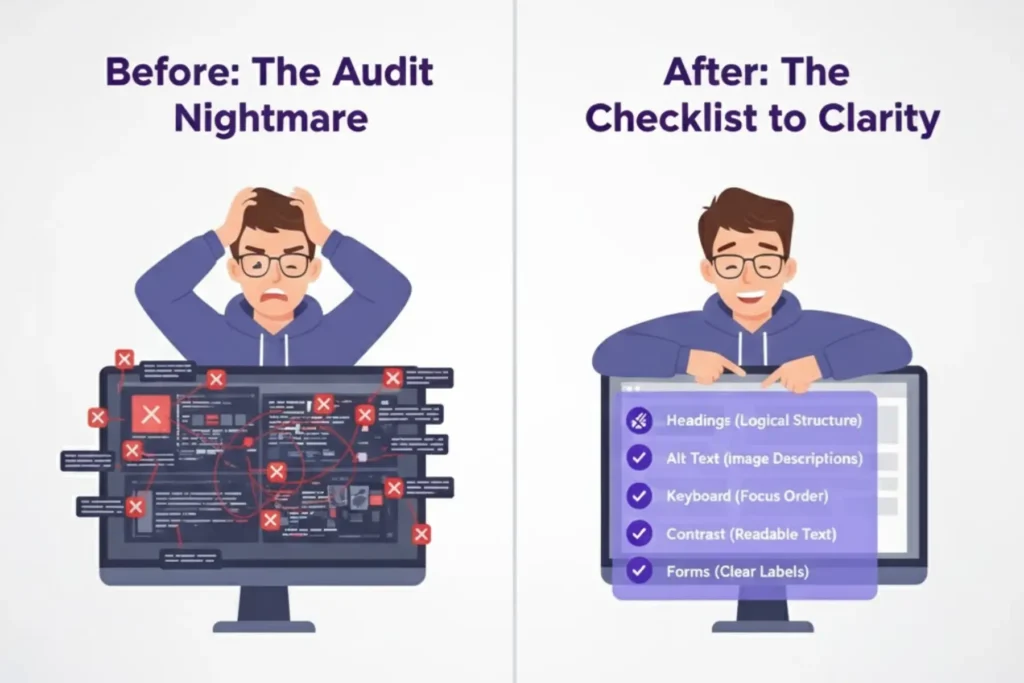
Regular testing and iteration improve accessibility over time. Combine automated tools with manual testing and user feedback for a comprehensive evaluation.
Quick Accessibility Checks You Can Perform
Navigate your content using only the keyboard. Check color contrast with online tools. Verify that images have meaningful alt text test forms with error conditions to ensure clear feedback.
Review content with screen reader software or browser extensions that simulate assistive technology. These quick checks catch many common accessibility barriers.
Automated Accessibility Tools (with caveats)
Automated scanners uncover technical issues. These can be missing alt text, inadequate color contrast, or structural problems. Yet, they cannot test content quality or user experience aspects of accessibility.
Start with tools like WAVE, axe, or Lighthouse. Then, add manual testing and user feedback. The UserWay widget and similar overlays can’t replace a proper accessible design.
The Importance of an Accessibility Statement
An accessibility statement clarifies your commitment to inclusion and gives users a direct way to report any barriers they encounter. It should describe your current accessibility efforts, any known issues, and the channels available for feedback. Some teams also use monitoring tools to track recurring accessibility issues, helping ensure the statement stays accurate and aligned with ongoing improvements.
Keeping this document updated demonstrates your active commitment to inclusive design, rather than a symbolic one. Regular revisions demonstrate progress, address new challenges, and build trust with users by reinforcing that accessibility is an ongoing responsibility, not a one-time task.
Conclusion
Understanding accessibility basics is the first step to creating web spaces that work for everyone, improving navigation, clarity, and design across devices. By applying key principles like semantic HTML, descriptive text alternatives, keyboard navigation, and good color contrast, you can remove common barriers and make your content more inclusive.
Accessibility is an ongoing journey of learning and improvement. Regular audits, user testing, and small step-by-step changes help you maintain accessibility, enhance your projects, and build a digital world where everyone can participate equally. Start your next project with accessibility in mind and see the difference it makes for all users.
FAQs
Accessibility basics help make your website usable for everyone, including those with disabilities. They remove barriers, improve usability and SEO, meet WCAG/ADA standards, and Accessify helps you get started.
AI automates accessibility testing, detects issues like missing alt text, and suggests improvements. It also enables voice navigation and personalized settings, reducing manual effort and ensuring compliance with WCAG and ADA.
The POUR model (Perceivable, Operable, Understandable, Robust) guides web accessibility. It ensures that content is accessible, navigable, clear, and compatible with assistive technology, improving usability and trust.
Use tools like Axe, WAVE, or Lighthouse to find accessibility issues, then test manually with screen readers and keyboard navigation. Regular audits ensure WCAG compliance, and Accessify makes monitoring and scanning simple.
Avoid missing alt text, low contrast, unclear navigation, and a lack of keyboard accessibility. Don’t rely on color alone or use non-descriptive link text. Address issues such as video captions and poor heading structure to enhance accessibility.