
Quick Summary
WCAG 2.2 is the latest version of the Web Content Accessibility Guidelines (WCAG) standard. This checklist helps you meet its Level A and AA requirements, which are crucial for legal compliance and making your site accessible to everyone. The goal of WCAG 2.2 is to make web content more perceivable, operable, understandable, and robust for all users, including those with disabilities.Web Accessibility Checklist for Today’s Web
Making your website accessible isn’t just good practice; it’s becoming legally required in many jurisdictions. Whether you’re a developer building from scratch, a QA tester ensuring quality, or a business owner concerned about compliance, understanding WCAG 2.2 is essential. This checklist translates technical requirements into actionable steps, helping you create digital experiences that work for everyone.What Is WCAG and Why Does It Matters?
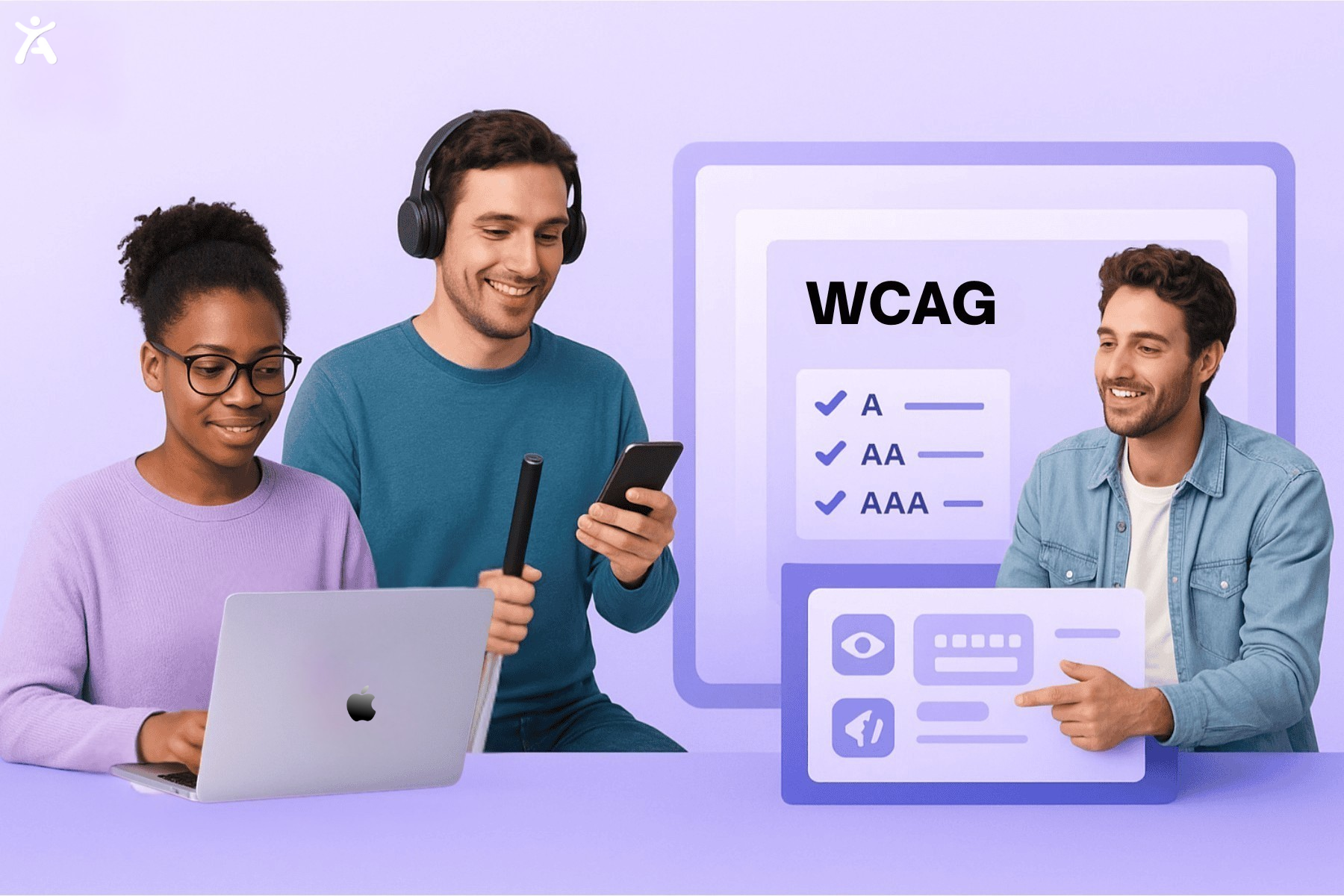
The Web Content Accessibility Guidelines (WCAG) are the international standard for making web content accessible to people with disabilities. Published by the World Wide Web Consortium (W3C), these guidelines address visual, auditory, physical, speech, cognitive, language, learning, and neurological disabilities. WCAG matters because: Legal compliance: Referenced in the ADA, Section 508, EN 301 549, and other accessibility laws worldwide Risk mitigation: Conformance significantly reduces your risk of accessibility lawsuits Expanded audience: Over 1.3 billion people globally have disabilities Better UX: Accessible design benefits all users, not just those with disabilities SEO advantages: Many accessibility practices improve search engine rankingsWhat’s New in WCAG 2.2
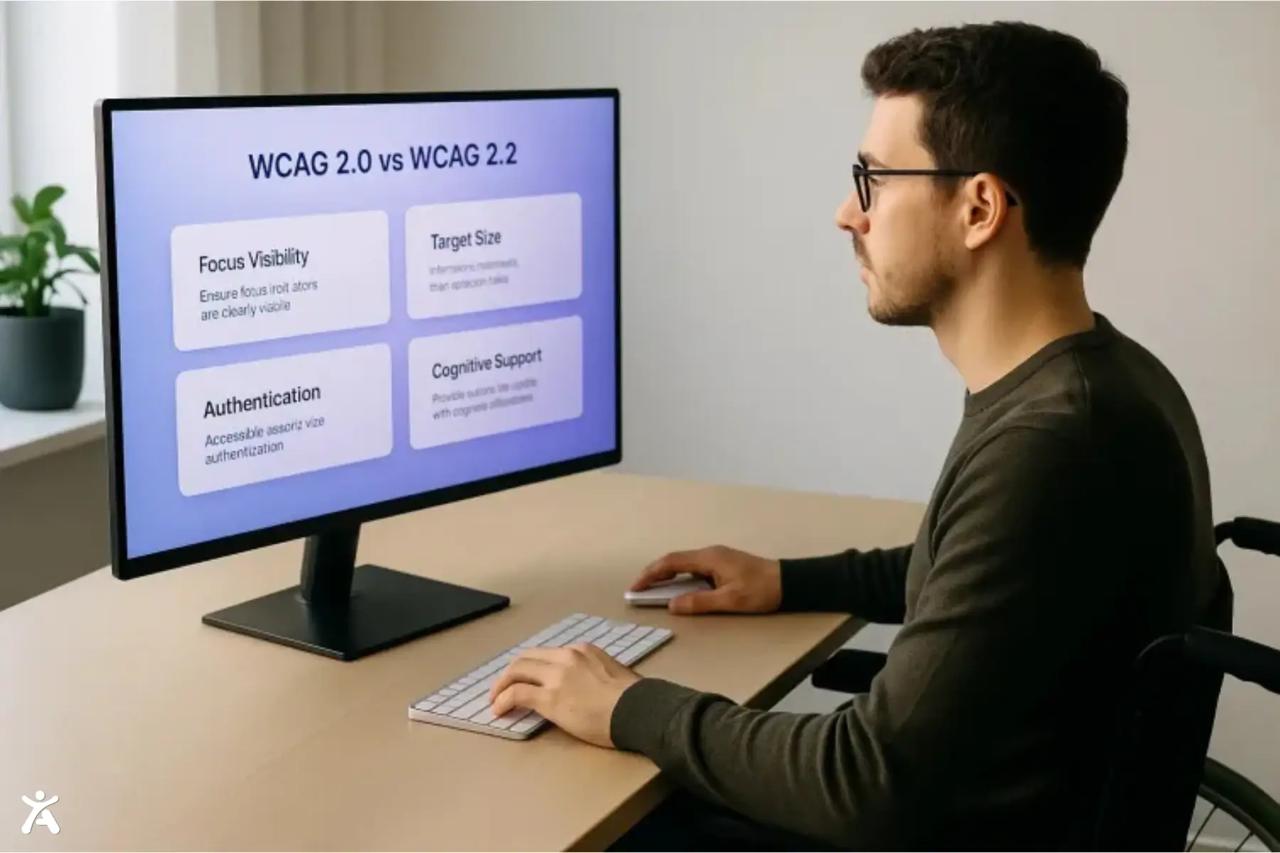
WCAG 2.2, published in October 2023, builds on WCAG 2.1 (June 2018) and WCAG 2.0 (December 2008). Each version is backward compatible content conforming to WCAG 2.2 also conforms to earlier versions of the standard. WCAG 2.2 introduces nine new success criteria focused on:- Cognitive accessibility: Easier authentication methods and consistent help options
- Mobile accessibility: Better touch target sizing and alternatives to dragging
- Vision accessibility: Enhanced focus visibility requirements
WCAG Structure and Success Criteria
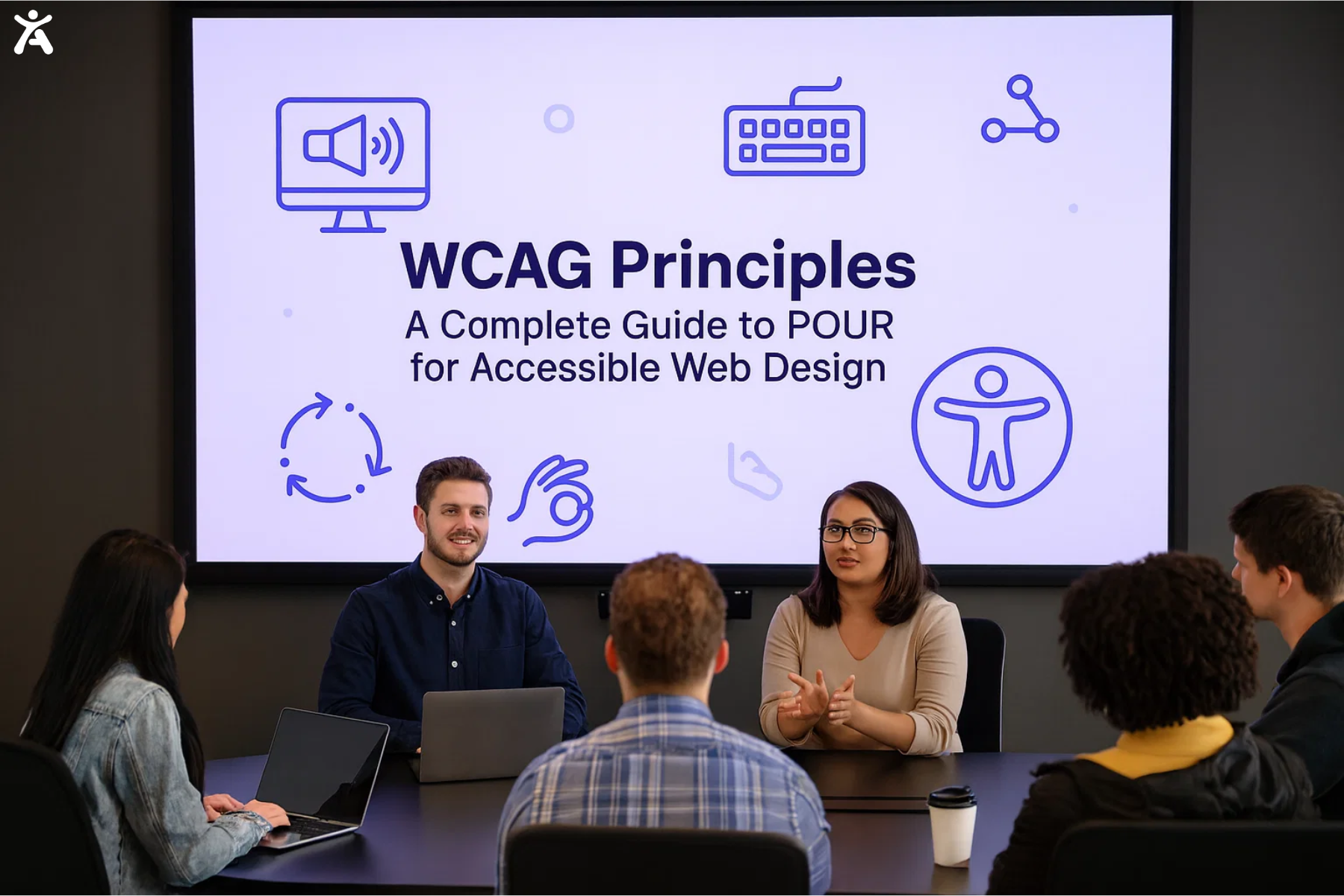
WCAG’s structure flows from broad to specific:- Principles (4): The foundation Perceivable, Operable, Understandable, Robust
- Guidelines (13): General goals for making content accessible
- Success Criteria (86 in WCAG 2.2): Testable statements for each guideline
- Techniques: Documented ways to meet success criteria (sufficient techniques) and recommendations going beyond requirements (advisory techniques)
Core WCAG 2.0 & 2.1 Checklist (Level AA)
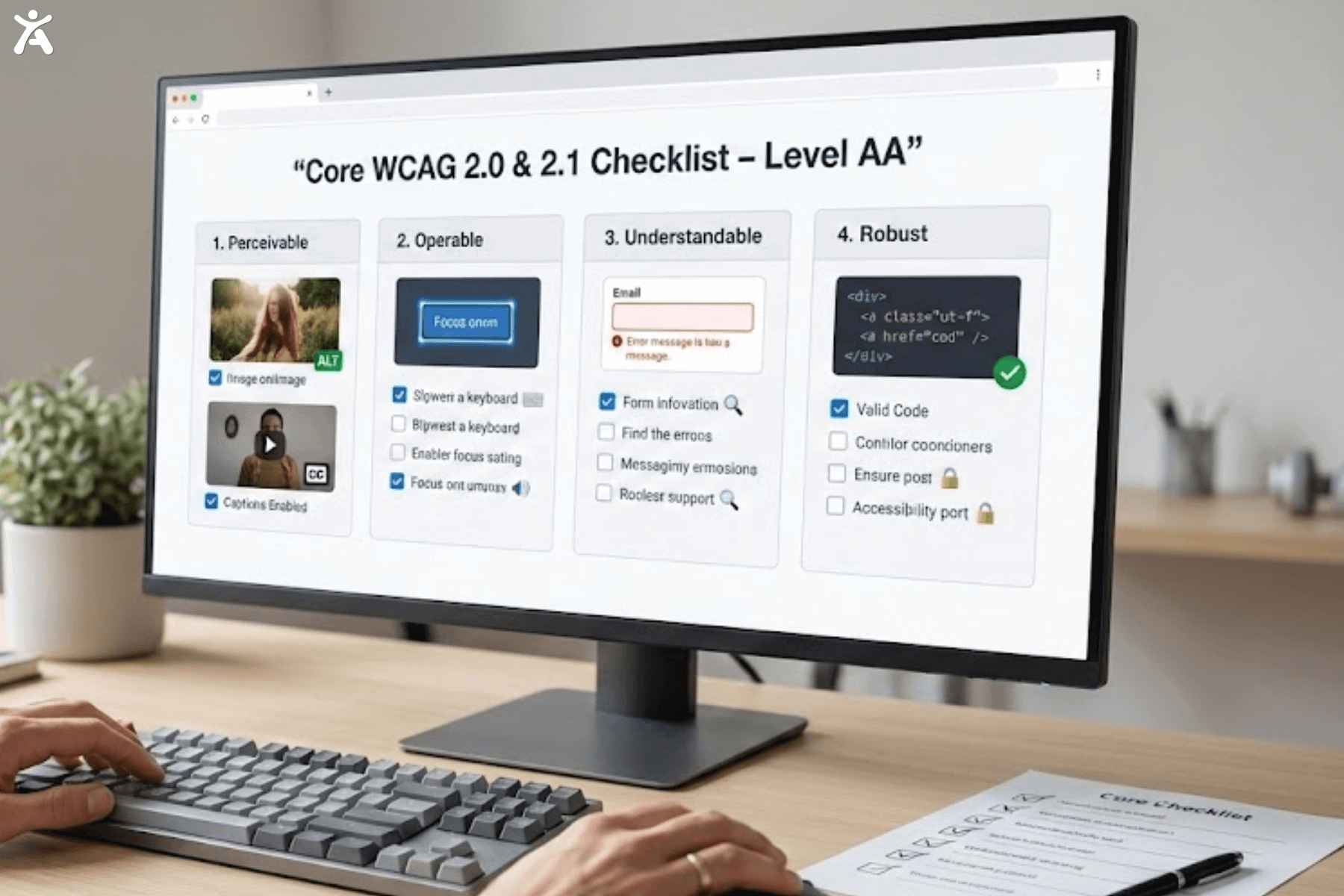 These requirements form the foundation of web accessibility and come from WCAG 2.0 and 2.1.
Perceivable Content
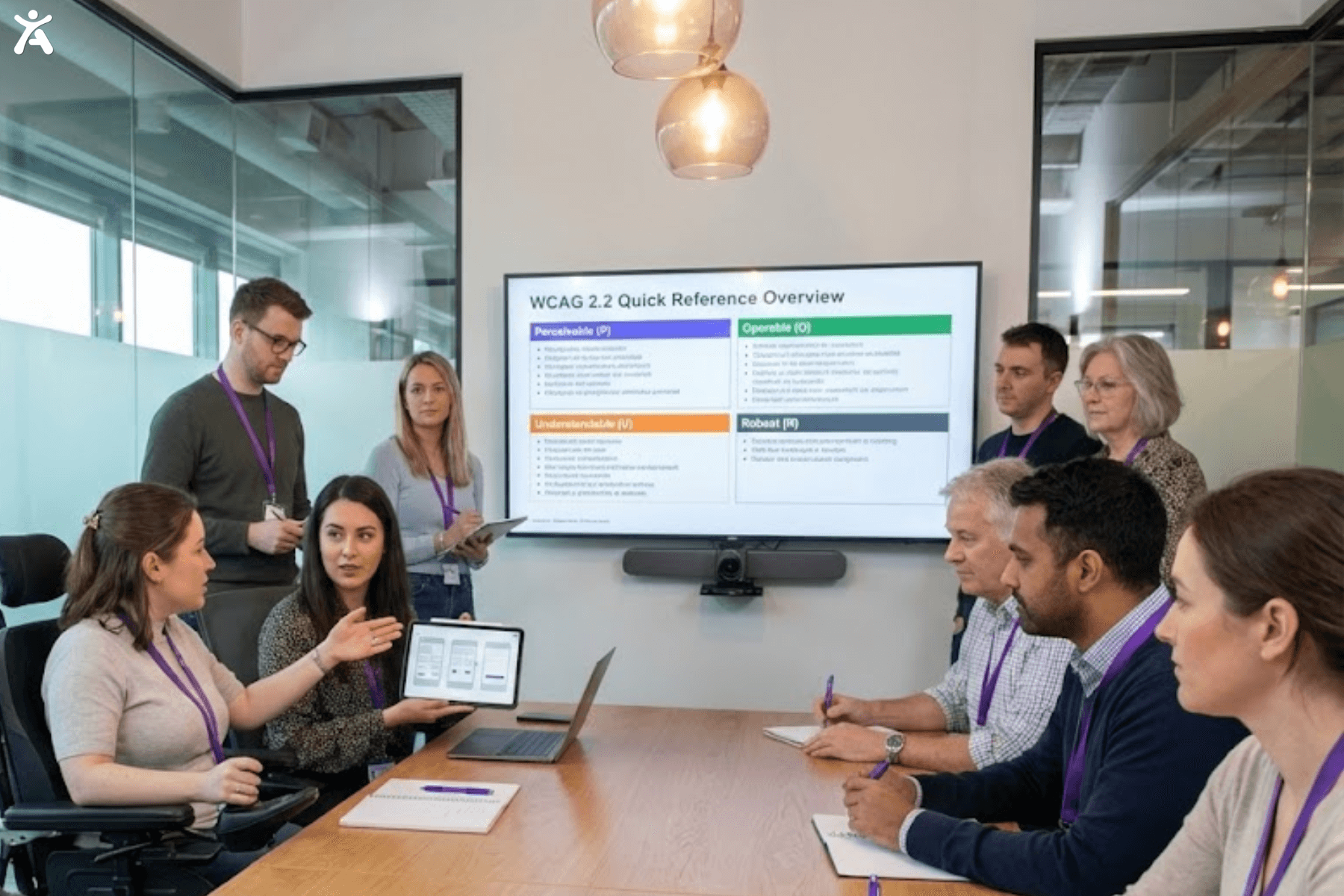
To ensure web accessibility, provide text alternatives for non-text content, such as images and audio, enabling use with assistive technologies (e.g., alt text, transcripts, captions). Use proper HTML structure, maintain a logical reading order, and avoid relying solely on sensory cues, such as color or shape, to convey information. Ensure content is visually clear with appropriate contrast ratios, supports resizing without loss of functionality, and remains usable across all devices and screen sizes.Operable Interfaces and Easy Navigation
The “Operable” principle ensures that users can easily interact with all components and navigate a website. This means ensuring everything functions properly with a keyboard, allowing users sufficient time to read and use the content, and designing pages that are seizure-safe. It also involves making websites easy to navigate with clear links and headings, and supporting different input methods beyond just a mouse or complex gestures.Understandable Design and Clarity
The “Understandable” principle ensures web content is readable, with clearly defined languages, and user interfaces behave predictably, avoiding unexpected changes. It also provides comprehensive input assistance, guiding users with clear labels, error messages, and safeguards for critical data entry.Robust Content and Compatibility
The “Compatible” principle (Guideline 4.1) ensures various user agents and assistive technologies can reliably interpret web content. This includes proper parsing of code and making sure user interface components and status messages are programmatically discernible to assistive technologies. Furthermore, compatibility also extends to different browsers and operating systems. Web developersWCAG 2.2 New Accessibility Criteria
 These nine new requirements in WCAG 2.2 address gaps in previous versions of the standard.
Focus Not Obscured (Minimum) (2.4.11 Level AA)
When a user interface component receives keyboard focus, at least part of the focus indicator must remain visible and not be entirely hidden by author-created content. Why it matters: Keyboard users need to see where focus is located. Sticky headers, footers, or cookie banners can obscure focus, making navigation impossible. How to meet it:- Test keyboard navigation with sticky elements visible
- Ensure your content doesn’t completely hide focus indicators
- Consider adjusting the z-index or the positioning of overlapping elements
- Note: Content opened by the user (like dialogs) can temporarily obscure focus
Focus Not Obscured (Enhanced) (2.4.12 Level AAA)
When a user interface component receives keyboard focus, no part of the focus indicator is hidden by author-created content. Why it matters: This is the stricter AAA version of 2.4.11, ensuring the entire focus indicator remains visible. How to meet it:- Ensure no author-created content obscures any part of the focus indicators
- Carefully manage the z-index of sticky elements
- Test with various viewport sizes and zoom levels
Focus Appearance (2.4.13 Level AA)
When the keyboard focus indicator is visible, it must:- Be at least as large as a 2 CSS pixel thick perimeter of the unfocused component
- Have a contrast ratio of at least 3:1 between focused and unfocused states
- Design focus indicators with an adequate size (minimum 2px outline)
- Ensure 3:1 contrast between focused and unfocused states
- Test with various background colors
- Exception: Default browser focus indicators that authors don’t modify are exempt
Dragging Movements (2.5.7 Level AA)
All functionality that uses dragging can be achieved with a single pointer without dragging, unless dragging is essential or determined by the user agent. Why it matters: Users with motor disabilities may struggle with drag-and-drop interactions. Touchscreen users, those using assistive technologies, or individuals with tremors require alternatives. How to meet it:- Provide click-to-select and click-to-place alternatives
- Offer buttons or controls for reordering items
- Include keyboard alternatives for drag operations
- Examples: Sortable lists with up/down buttons, sliders with input fields, maps with directional controls
Target Size (Minimum) (2.5.8 Level AA)
The size of targets for pointer inputs must be at least 24 by 24 CSS pixels, except when:- Spacing: Undersized targets have sufficient spacing around them
- Equivalent: The function can be achieved through a different control meeting this criterion
- Inline: The target is in a sentence or block of text
- User agent control: Size is determined by the user agent and not modified by the author
- Essential: A particular presentation is legally or otherwise required
- Design buttons and interactive elements at least 24×24 CSS pixels
- Add adequate padding to increase the target size
- Ensure sufficient spacing between adjacent targets
- Test on mobile devices with various screen sizes
How to Integrate WCAG 2.2 into Your Workflow
Meeting WCAG requirements isn’t a one-time project, it’s an ongoing commitment.Accessibility Audits and Prioritization
Conduct an Initial Audit Begin with a comprehensive accessibility audit that incorporates several key methods. Use automated testing tools, such as Accessify, and Axe DevTools, to identify potential issues. Complement this with manual testing conducted by accessibility experts to catch nuances that tools may miss. Include screen reader testing and keyboard navigation testing to ensure compatibility with assistive technologies. Finally, conduct user testing with people with disabilities to gain direct feedback and validate the usability of your product. Not all issues carry equal weight. Prioritize based on:- Severity: Does it completely block access or create a minor inconvenience?
- Frequency: How often do users encounter this issue?
- User impact: How many users does it affect?
- Legal risk: Is it a Level A or AA violation referenced in applicable laws?
- Month 1: Address critical keyboard navigation issues
- Month 2: Fix color contrast and text alternatives
- Month 3: Improve form accessibility and error handling
- Month 4: Address remaining Level A issues
- Months 5-6: Tackle Level AA requirements
- Ongoing: Maintain compliance and address new contents
WCAG 2.2 Testing Tools and Techniques
WCAG 2.2 testing tools and techniques help identify and fix accessibility issues, ensuring websites meet compliance standards and deliver inclusive user experiences.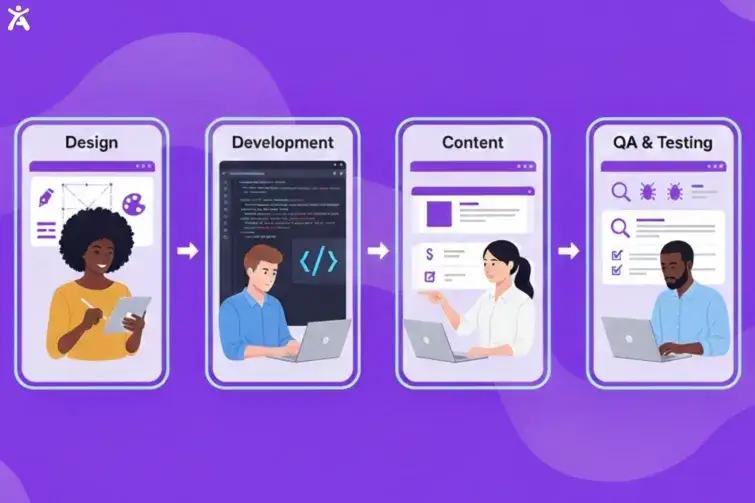 Automated Testing Tools
While automation can’t catch everything (only ~30-40% of issues), it’s essential for efficient testing:
Automated Testing Tools
While automation can’t catch everything (only ~30-40% of issues), it’s essential for efficient testing:
- Browser extensions: Accessify, axe DevTools
- Testing platforms: accessScan, Deque axe Monitor, Siteimprove
- CI/CD integration: axe-core, Pa11y, Cypress with accessibility plugins
- Keyboard testing: Navigate using only Tab, Shift+Tab, Enter, Space, and arrow keys
- Screen reader testing: Test with NVDA (Windows), JAWS (Windows), VoiceOver (Mac/iOS), TalkBack (Android)
- Color contrast analyzers: WebAIM Contrast Checker, Contrast Ratio tool
- Text spacing bookmarklets: Test content reflow when users adjust spacing
- Focus visibility testing: Ensure focus indicators are visible throughout
- Recruit participants with various disabilities
- Use services like Access Services that include user testing
- Document feedback and prioritize issues
- Test across different assistive technologies and devices
- Use semantic HTML (headings, landmarks, lists)
- Implement ARIA labels and roles correctly (but prefer semantic HTML)
- Test throughout development, not just at the end
- Include accessibility in your definition of “done”
- Create an accessibility checklist for developers
- Conduct peer code reviews with an accessibility focus
Ongoing Accessibility Maintenance
Ongoing accessibility maintenance following the web accessibility checklist ensures your website remains compliant, user-friendly, and inclusive as content, technology, and standards evolve.Regular Audits
Schedule recurring accessibility audits: conduct comprehensive audits quarterly for high-traffic sites, perform testing after major updates or redesigns, and carry out monthly spot checks for new content or features.Content Author Training
Train content creators on how to write descriptive alt text, create accessible documents (such as PDFs and Word documents), use proper heading structure, and craft accessible link text. They should also understand the requirements for video captioning.Developer Training
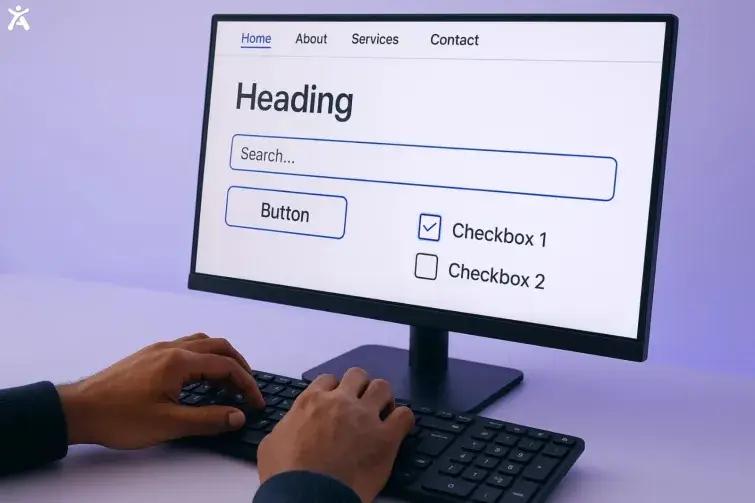 Train developers on key accessibility principles, including semantic HTML, ARIA, keyboard navigation, focus management, and accessible forms. They should also be proficient in various testing methodologies to ensure all code meets accessibility standards.
Governance and Policy
Establish a strong organizational commitment by creating an accessibility policy, assigning clear responsibilities, integrating accessibility into procurement, setting measurable goals, and regularly reporting on accessibility metrics.Monitoring and Alerts
Implement systems to detect regressions through automated monitoring, issue alerts, and pre-deployment accessibility testing.Why WCAG 2.2 Benefits Everyone
Accessibility delivers value beyond compliance. It creates an inclusive experience for all users, fosters innovation, and builds loyalty by demonstrating a commitment to diversity and inclusion. Prioritizing accessibility ensures your digital solutions are usable by everyone, driving both social and business impact.WCAG 2.2 Roadmap for Web Accessibility
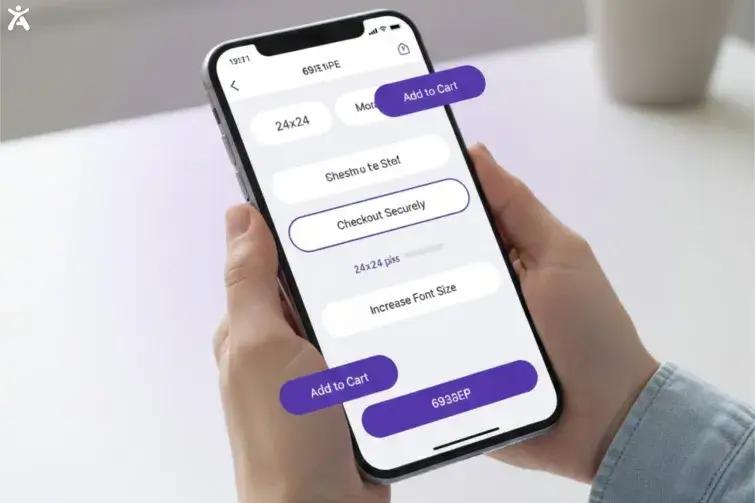 The WCAG 2.2 roadmap builds on previous versions to make digital content even more accessible for users with diverse needs. It introduces new success criteria focused on mobility, cognition, and interaction, ensuring a more inclusive web for everyone.
Key Takeaways and Next Steps
Creating accessible digital experiences requires: Understanding: Grasp the structure, principles, and requirements of WCAG. Use this checklist as your guide, but refer to the Understanding documents for additional context. Assessment: Audit your current state. Know where you stand before planning improvements. Strategy: Prioritize issues, set goals, allocate resources, and create a realistic timeline. Implementation: Fix issues systematically. Address critical blockers first, then work through remaining barriers. Testing: Verify fixes work across browsers, devices, and assistive technologies. Include users with disabilities in testing. Maintenance: Establish processes to sustain accessibility as your site evolves. Train teams, monitor for regressions, and conduct regular audits to ensure quality. Immediate Action Steps:- Run an automated accessibility scan today
- Test your site using only a keyboard
- Check color contrast on key pages
- Review your forms for clear labels and error messages
- Ensure all images have appropriate alt text
- Test your site with a screen reader
- Create an accessibility remediation plan
Conclusion
The Web Accessibility Checklist isn’t just about avoiding lawsuits or checking compliance boxes; it’s also about ensuring a better user experience. It’s about ensuring that everyone, regardless of ability, can access information, complete tasks, and participate fully in digital experiences. The web was designed to be accessible to everyone. WCAG 2.2 provides the roadmap; it’s up to you to follow it. Ready to get started? Begin with one page, one component, one improvement at a time. Every step toward accessibility is a step toward a more inclusive web. Need help? Consider partnering with accessibility experts who can guide your journey, conduct audits, train your teams, and ensure you’re building digital experiences that work for everyone.FAQs
1. Why is accessibility important in web design?Accessibility ensures everyone, including people with disabilities, can use and navigate websites effectively. Prioritizing accessibility improves user experience, expands audience reach, and helps meet legal compliance standards like WCAG. It’s essential for inclusivity, SEO performance, and ethical digital design.
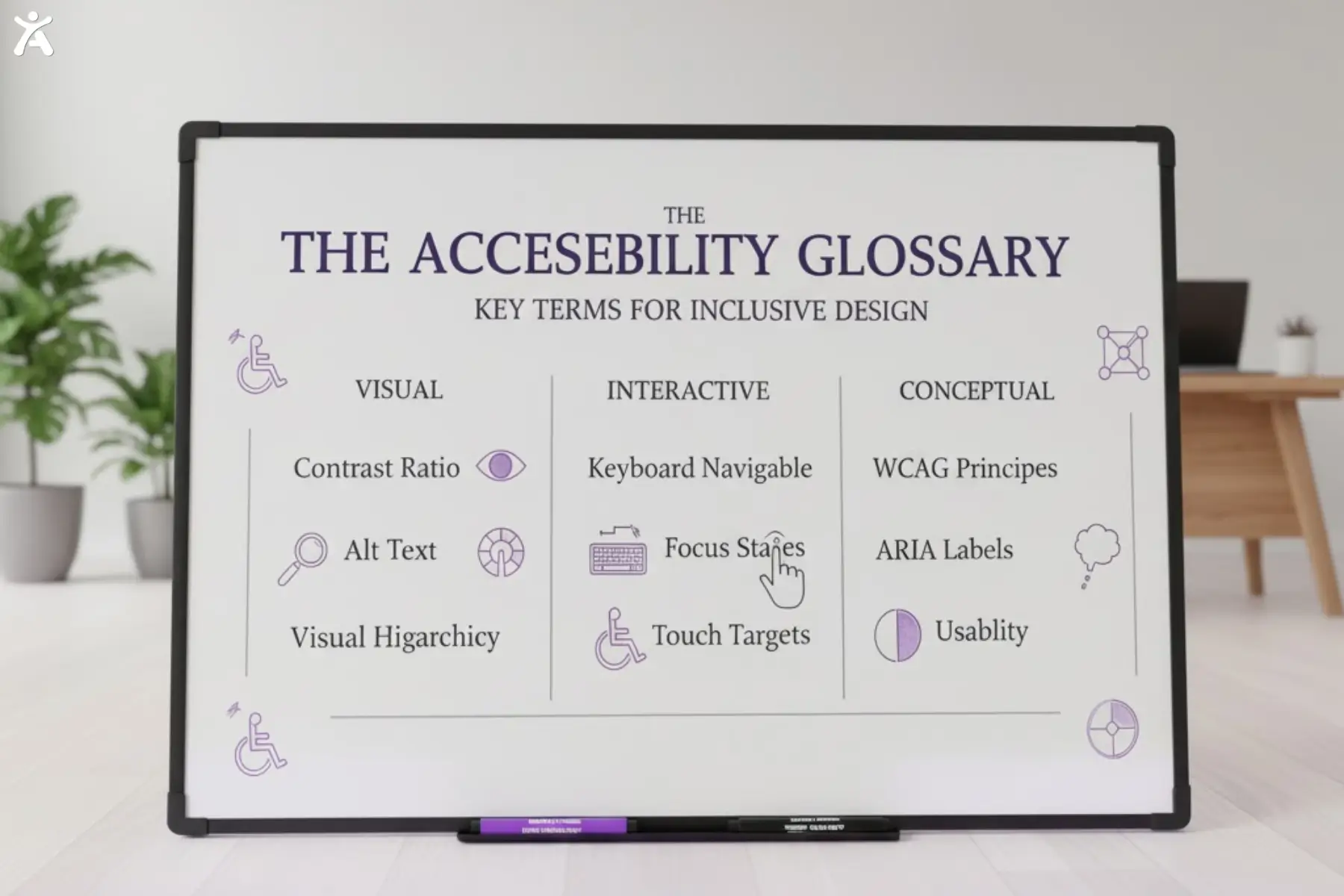
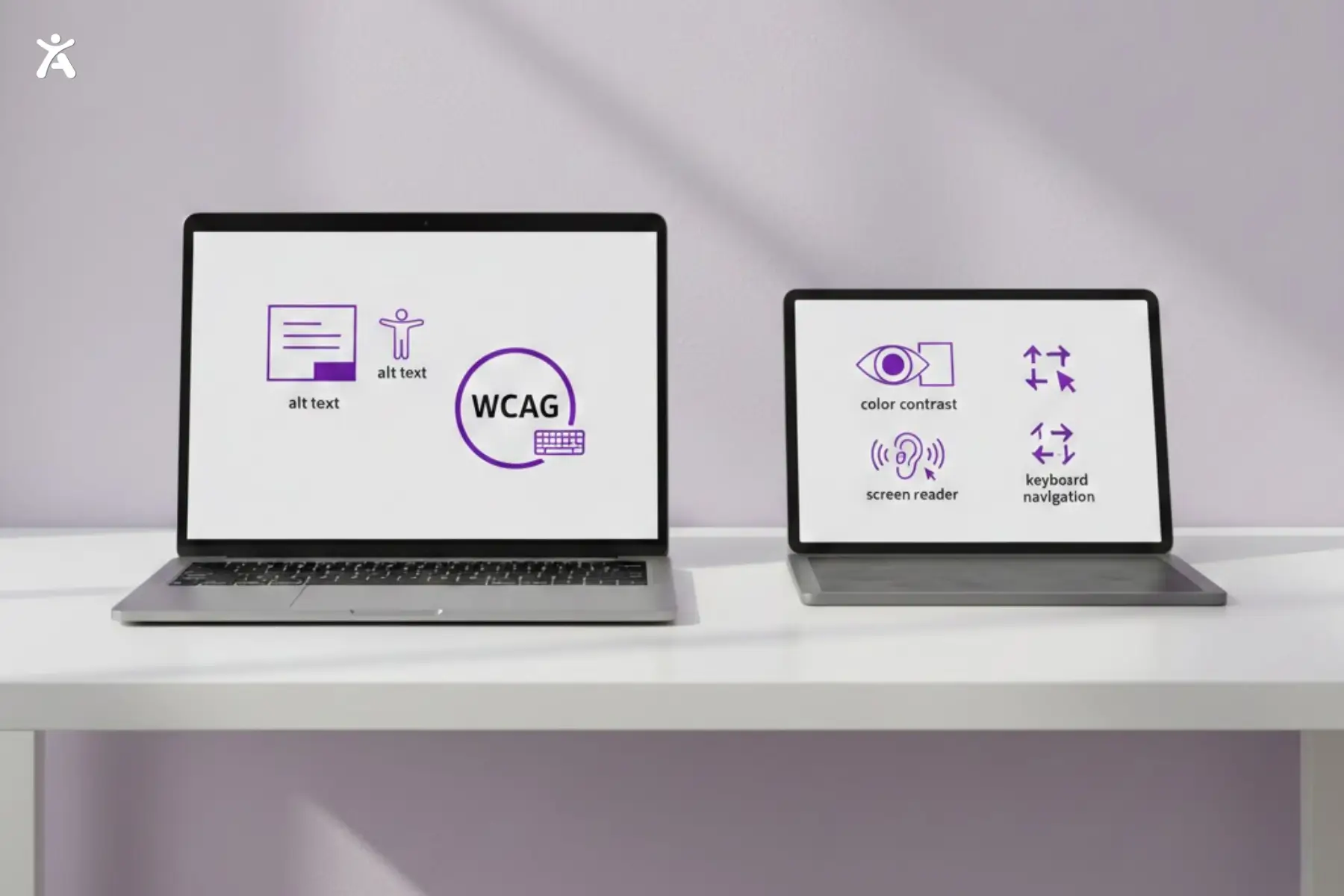
Accessibility testing evaluates color contrast, keyboard navigation, alt text, headings, and ARIA roles to ensure a seamless user experience. These components ensure that users relying on assistive technologies can interact with websites effectively. Regular audits help detect usability barriers before launch.
Use automated testing tools, screen readers, and manual checks to evaluate usability. Combine real-user feedback with AI-driven audits for deeper insights. Consistent testing ensures compliance and provides smoother digital experiences for all users.
A web accessibility checklist outlines WCAG-based criteria, including perceivable content, operable navigation, understandable text, and robust coding. Using tools like Accessify helps developers and designers maintain inclusivity and ensure compliance with global accessibility standards efficiently.
A web accessibility checklist helps developers systematically ensure their designs meet accessibility requirements. It simplifies auditing, prevents errors, and improves digital equity by guiding teams through essential accessibility standards across devices and user needs.