
Does WCAG Apply to Mobile Apps?
Yes, WCAG applies to mobile apps. U.S. courts and the DOJ treat native apps as “places of public accommodation” under the ADA, the same standard used for websites. WCAG 2.2 doesn’t have a separate mobile version, but several success criteria, touch target size, pointer gestures, motion actuation, and orientation, apply directly to how iOS and Android apps are built. Screen reader support through VoiceOver and TalkBack is the other core requirement.
Title III of the ADA doesn’t name mobile apps specifically, but courts have consistently treated them the same way they treat websites, as an extension of a business’s public accommodation. The DOJ has pointed to WCAG 2.1 AA as its working standard in enforcement actions, and that expectation carries over cleanly to native apps.
A few deadlines make 2026 the year this stops being theoretical:
- Healthcare apps tied to HHS-covered entities must meet WCAG 2.1 AA by May 11, 2026, under Section 504 of the Rehabilitation Act.
- The European Accessibility Act (EAA) has required accessible mobile apps for EU users since June 2025.
- Title II’s state and local government deadlines (April 2027 for large entities, April 2028 for smaller ones) apply to government apps the same way they apply to government websites.
Mobile-specific litigation is still smaller in volume than website litigation, but it’s no longer rare. Plaintiffs have already targeted retail apps directly, for example Jahoda v. Ralph Lauren Corporation (Case No. 2:24cv1195), using the same WCAG-based arguments seen in website demand letters. As the healthcare and Title II deadlines land this year, expect that volume to climb.
“Run a free accessibility check on your website today. Book a 15-minute Accessify audit call.”
The WCAG Success Criteria That Matter Most for Mobile

WCAG doesn’t have a “mobile edition,” but WCAG 2.1 and 2.2 added several success criteria written specifically with touch and gesture-based interfaces in mind. These are the ones that show up most often in mobile app audits.
Touch Target Size
Apple recommends a minimum touch target of 44×44 points. Google recommends 48x48dp. WCAG’s own Target Size criterion sets a 24×24 CSS pixel floor, with a stronger 44×44 CSS pixel recommendation at the AAA level. In practice, undersized buttons, close-together icons, and dense list items are some of the most common failures found in mobile audits.
Pointer Gestures and Pointer Cancellation
WCAG 2.5.1 requires that any action triggered by a multi-point or path-based gesture, like a pinch-to-zoom or a swipe-to-delete, also be available through a single-tap alternative. WCAG 2.5.2 requires that an action doesn’t complete on the initial touch-down event alone, so users can slide their finger off a button to cancel before it registers.
Motion Actuation
WCAG 2.5.4 covers features that respond to device movement, like shake-to-undo or tilt-to-scroll. Anything triggered this way needs a standard on-screen control as a backup, since motion-based input excludes users with limited mobility and anyone using the device mounted on a wheelchair or stand.
Orientation Lock
WCAG 1.3.4 requires that content isn’t restricted to a single orientation, portrait or landscape, unless that orientation is essential to the function. Apps locked to portrait-only can be a genuine barrier for users with a fixed device mount.
iOS Accessibility: What VoiceOver Requires
VoiceOver is Apple’s built-in screen reader, and it’s the primary way blind and low-vision users navigate iOS apps. It relies on developers correctly setting accessibility labels, traits, and hierarchy on every interactive element, information that’s invisible on screen but essential for VoiceOver to describe the interface out loud.
Common iOS-specific gaps include:
- Missing or generic accessibility labels (a button labeled “Button” instead of “Add to cart”)
- Custom UI components that don’t expose the right accessibility traits
- Focus order that doesn’t match the visual reading order
- Dynamic Type not supported, so text doesn’t resize when a user increases their system font size
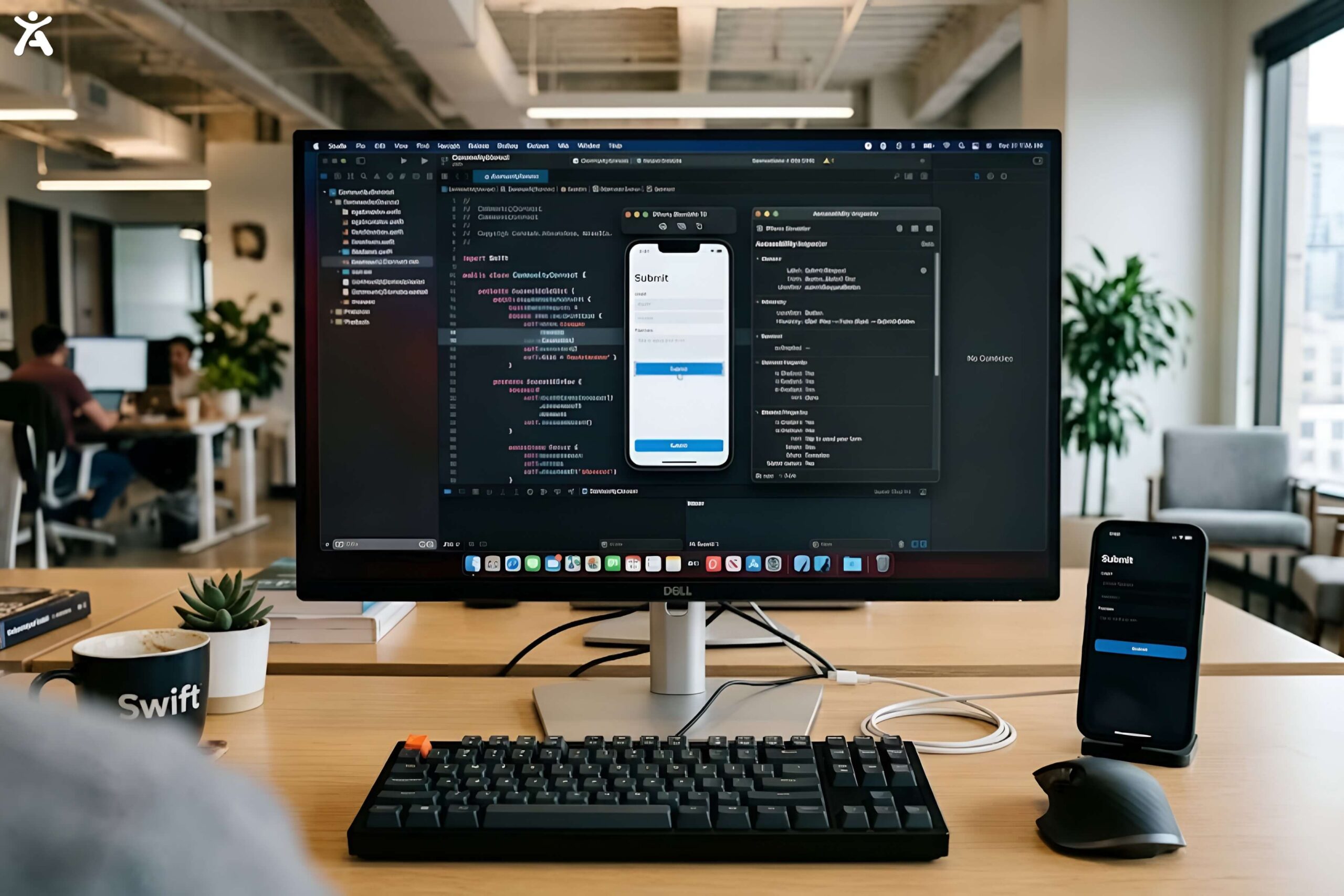
Testing with VoiceOver and Xcode Accessibility Inspector
Enable VoiceOver directly in iOS Settings under Accessibility to test real navigation and gesture flow. For a faster developer-side check, Xcode’s Accessibility Inspector audits labels, traits, and hierarchy directly and can simulate VoiceOver behavior without leaving the build environment. Neither replaces the other. Automated checks catch missing labels; only a manual VoiceOver pass catches confusing focus order or illogical reading flow.
Android Accessibility: What TalkBack Requires
TalkBack is Google’s screen reader, installed by default on all Android devices. It uses a menu-based navigation model that differs from VoiceOver’s gesture-first “rotor” approach, which is exactly why cross-platform frameworks like React Native and Flutter still require testing on both platforms independently. Mapping accessibility props to native APIs doesn’t guarantee identical screen reader behavior.
Common Android-specific gaps include:
- Content descriptions missing on ImageButtons and icon-only controls
- Custom views that don’t implement the Android accessibility API correctly
- Touch targets smaller than Google’s 48x48dp recommendation
- TalkBack focus order that skips or duplicates elements
Testing with TalkBack and Android Accessibility Scanner
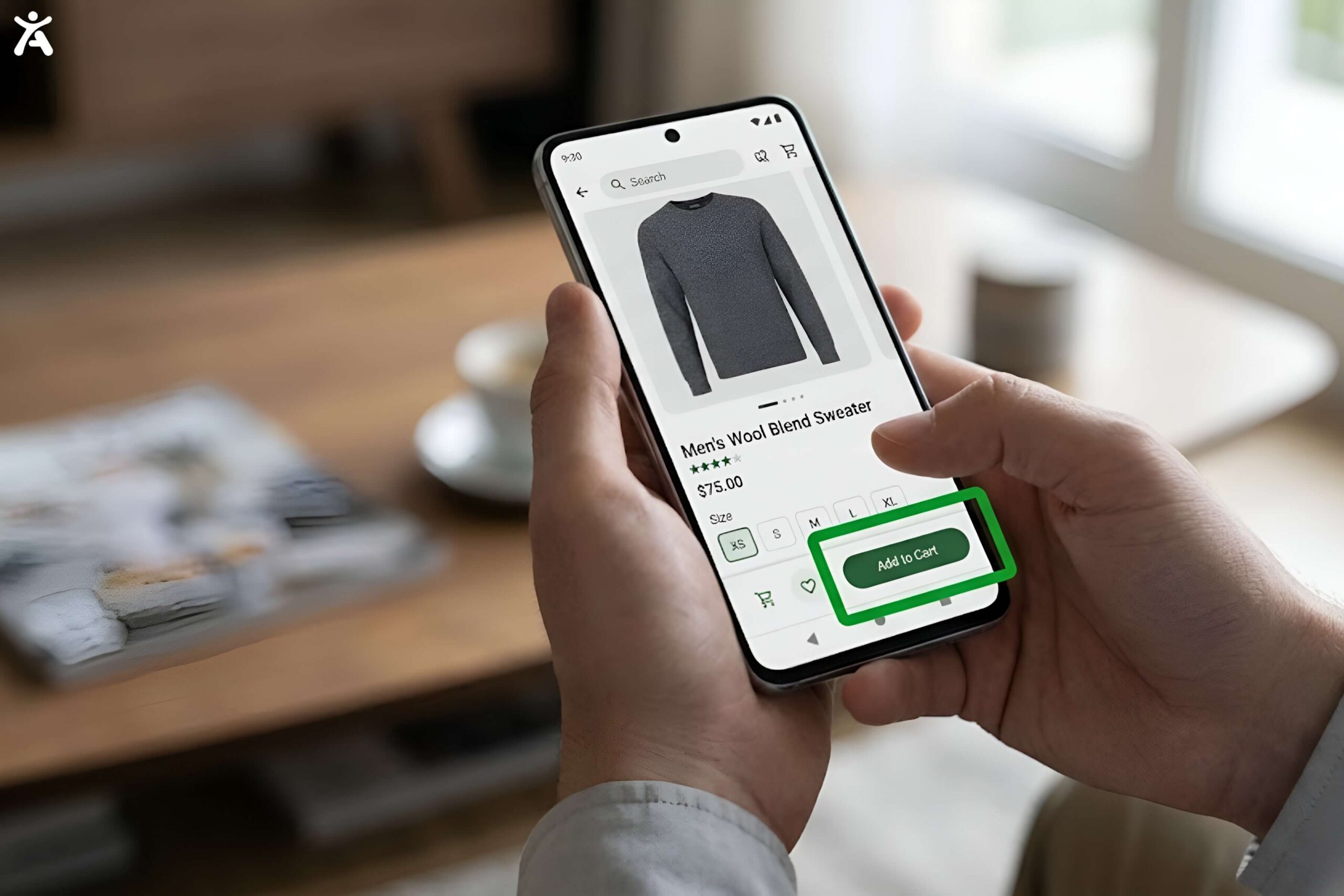
Enable TalkBack in Android Settings under Accessibility for manual gesture-based testing. Android Studio’s Accessibility Scanner and Espresso’s accessibility checks API both catch missing labels and undersized targets automatically, but should be paired with a real TalkBack pass, since TalkBack behavior can vary across Android versions and device manufacturers.
Where a Website Widget Can’t Help
This is the part most vendors skip, so it’s worth saying plainly: an accessibility widget installed on your website does nothing for your native iOS or Android app. A widget works by modifying the DOM in a browser. Native apps don’t have a DOM. If your business runs both a website and a native app, they need to be treated as two separate accessibility efforts, audited and remediated on their own terms.
What Accessify’s widget does cover is your website and any mobile web experience rendered in a browser. For a native app, the fix has to happen in the codebase itself, through correct use of accessibility labels, traits, and the platform APIs covered above. If you’re not sure which category your app falls into, a quick way to check is whether it’s downloaded from the App Store or Google Play (native, widget doesn’t apply) versus opened through a mobile browser (web-based, widget applies).
How to Start Testing Your App Today
A practical first pass, before hiring an auditor or committing engineering time:
- Turn on VoiceOver (iOS) or TalkBack (Android) and try to complete your app’s core flow, sign-up, checkout, or main action, using only the screen reader.
- Check every icon-only button and image for a label that describes what it does, not just what it looks like.
- Measure your smallest tap targets against 44x44pt (iOS) or 48x48dp (Android).
- Try your gesture-based features (swipe, pinch, shake) and confirm each one has a single-tap alternative.
- Rotate the device and confirm nothing breaks or locks unexpectedly.
- Run an automated pass with Xcode Accessibility Inspector or Android Accessibility Scanner to catch what manual testing misses.
Automated tools alone won’t catch everything, and manual testing alone is too slow to run on every build. The combination is what audit teams and platforms like BrowserStack recommend, and it’s the same principle that applies to website testing: automated coverage for scale, manual and real-assistive-technology testing for confidence.
FAQs
Does WCAG legally apply to mobile apps?
Yes. While WCAG was written for web content, the DOJ and U.S. courts treat native mobile apps as places of public accommodation under the ADA, applying the same WCAG 2.1 AA standard used for websites.
What’s the minimum touch target size for mobile apps?
Apple recommends 44×44 points, Google recommends 48x48dp, and WCAG’s own Target Size criterion sets a 24×24 CSS pixel floor with a 44×44 CSS pixel AAA recommendation.
Is there a deadline for healthcare app accessibility?
Yes. HHS-covered healthcare entities must meet WCAG 2.1 AA in patient-facing apps by May 11, 2026, under Section 504 of the Rehabilitation Act.
What’s the difference between VoiceOver and TalkBack testing?
VoiceOver is Apple’s screen reader, using a gesture-based “rotor” model. TalkBack is Google’s screen reader, using a menu-based navigation model. Both need to be tested independently, even in cross-platform apps built with React Native or Flutter.
Are mobile app accessibility lawsuits common?
They’re less common than website lawsuits today, but volume is rising. Cases like Jahoda v. Ralph Lauren Corporation show plaintiffs are already applying WCAG-based arguments directly to native apps.