
A quick web page accessibility checker can show if your site blocks many users. This helps you avoid legal issues and lost income. In 2026, digital accessibility is more than a compliance checkbox. It’s key to user experience and brand reputation.
Waiting for a lawsuit to fix your website is a costly mistake. Whether you are a small business owner in the USA worried about ADA lawsuits or a developer in the US aiming for WCAG 2.2 compliance, speed is essential. This guide explains how to use rapid testing tools. You’ll learn to spot barriers, focus on fixes, and build an inclusive digital experience for all.
Quick Summary
Don’t have time for a full audit right now? Here is the bottom line: Automated checkers like Accessibility Insights for Web or WAVE are your first line of defense. They catch about 30-50% of issues instantly. However, “fast” doesn’t mean “finished.” You must combine these scans with quick manual checks, like keyboard navigation tests, to ensure true usability. Start with a scanner, fix the low-hanging fruit (like alt text and contrast), and then dive deeper.
The Urgency of Fast Web Accessibility
Why does speed matter now more than ever? The digital landscape is moving at breakneck speed. Each time you publish a new blog post or update a product page, you may create new barriers if you don’t check for accessibility.
Beyond Compliance and Legal Risk
Avoiding a lawsuit under the ADA or the European Accessibility Act is important. However, the business case for accessibility is even stronger. Companies that focus on accessibility often achieve better SEO results. They also build stronger brand loyalty and reach a large, underserved market. Fast checks allow you to maintain this standard without slowing down your release cycles.
Defining “Fast” in Accessibility
“Fast” doesn’t mean cutting corners. In this context, it means efficient identification of issues. It uses tools that quickly scan your code. They flag clear errors, so you can focus on fixing them. The immediate impact is to restore the barriers that stop users today.
What a Fast Checker Can and Cannot Do
It is crucial to set expectations. A web page accessibility checker is powerful, but it is not a magic wand.
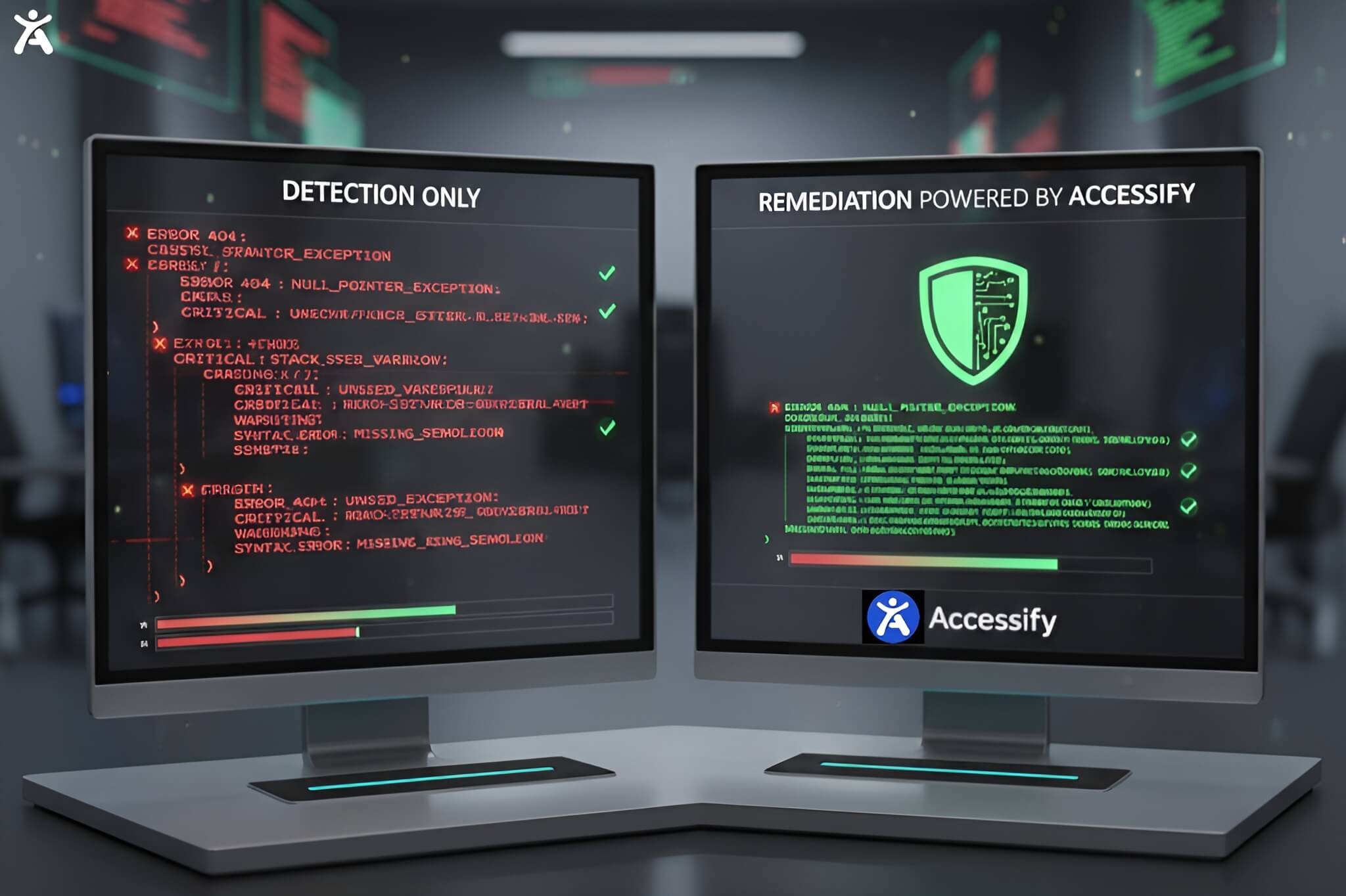
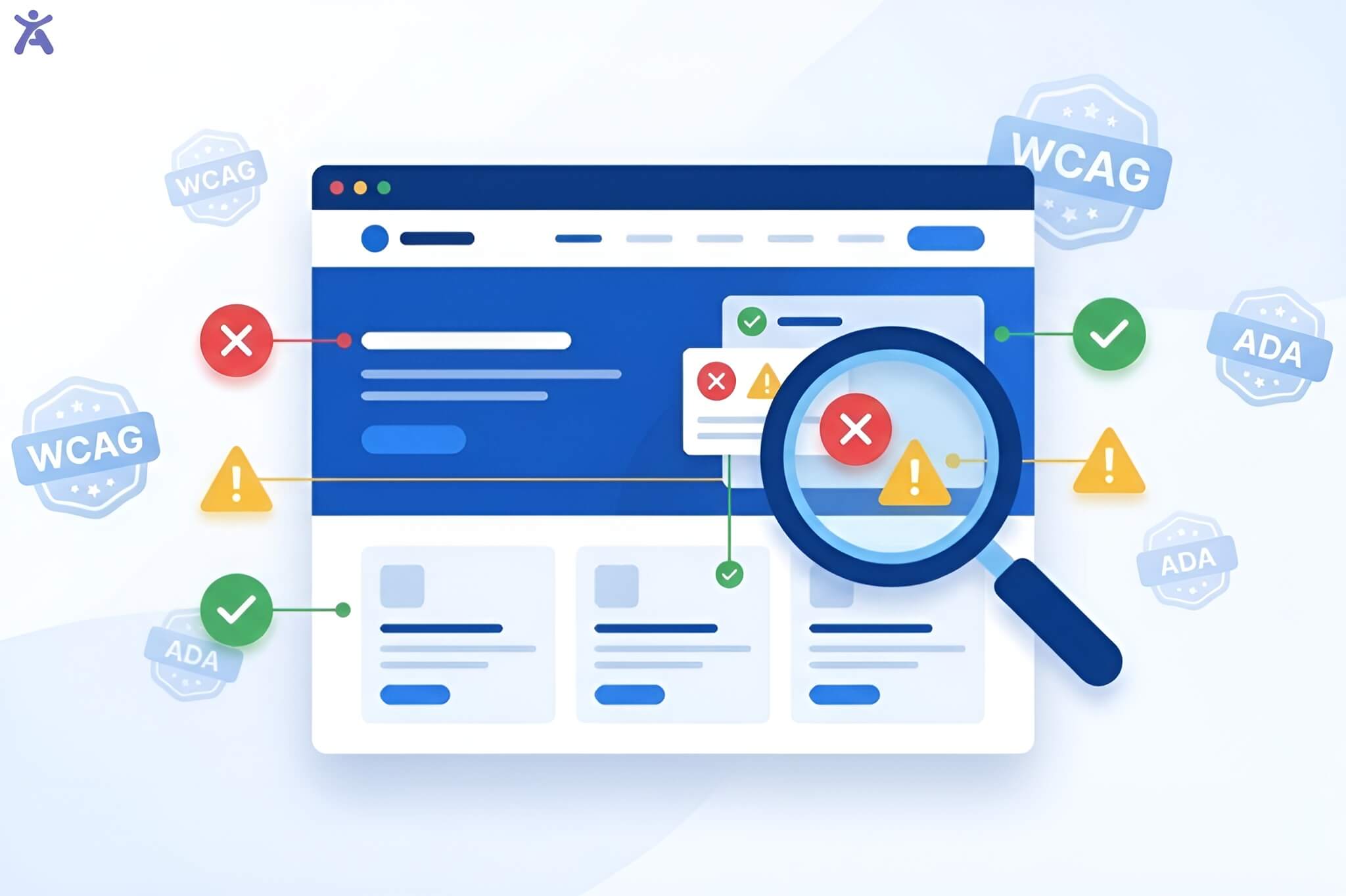
- What it CAN do: Instantly spot missing alt text, poor color contrast, missing form labels, and structural errors
- What it CANNOT do: Tell you if the alt text actually describes the image accurately, or if the keyboard navigation order makes logical sense to a human user
Your Methodology for Quick Wins
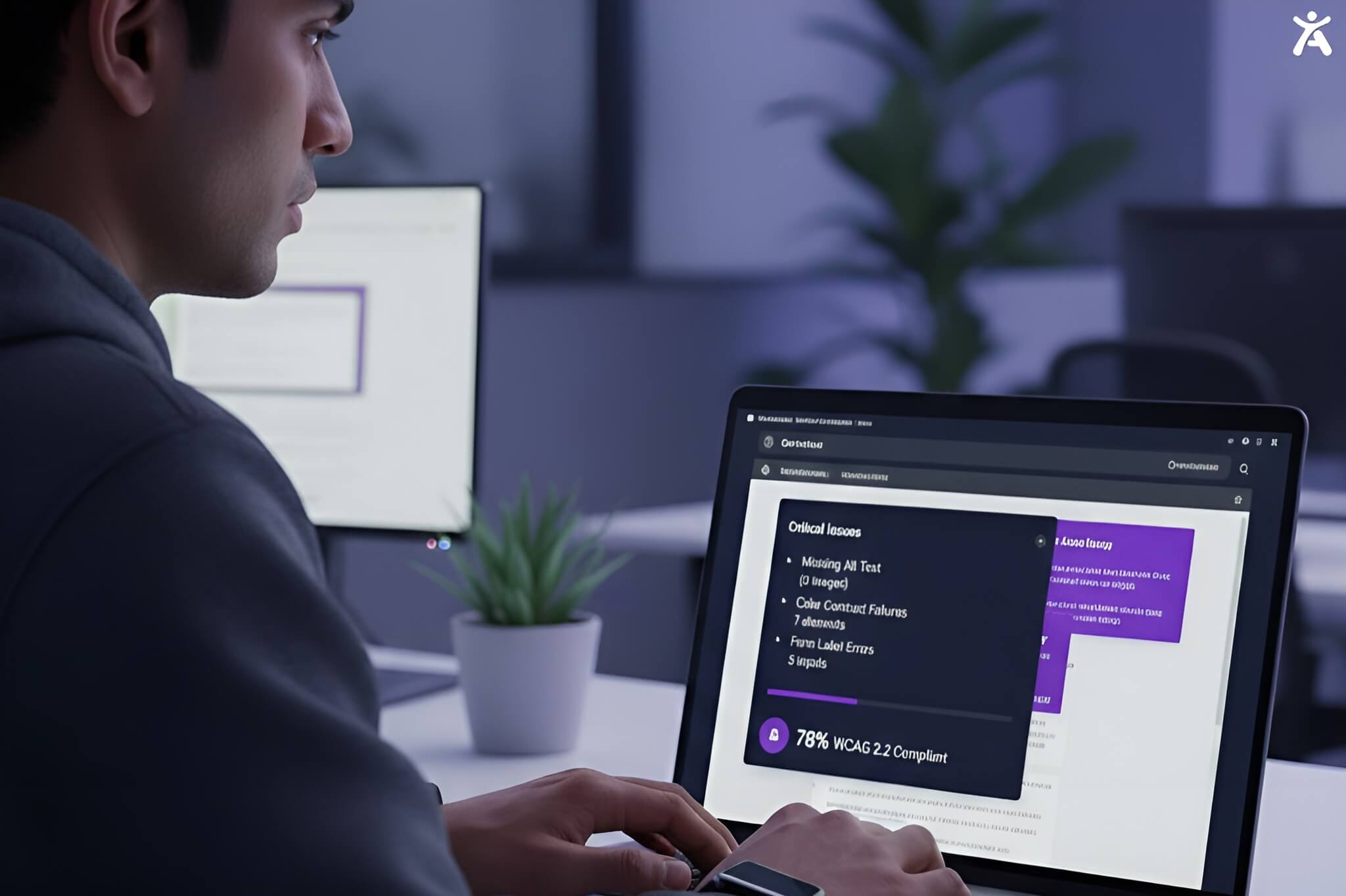
To get results quickly, you need a “FastPass” strategy. This approach blends automation with human insight to maximize coverage in the minimum time.
Blending Automated and Manual Checks
Relying solely on automation leaves gaps. Relying exclusively on manual audits is too slow for agile teams. The sweet spot is a hybrid approach: run an automated scan to catch the syntax errors, then perform targeted manual checks for usability.
Prioritizing High-Impact Issues
Not all accessibility issues are created equal. Missing alt text on a decorative icon is a minor nuisance; missing alt text on a “Buy Now” button is a critical failure. Focus your fast checks on the blockers that prevent users from completing key tasks.
Establishing a Rapid Review Workflow
Don’t make accessibility a once-a-year event. Integrate a rapid review into your publishing workflow. Before hitting “publish,” run a browser extension check. It takes less than 3 minutes and saves hours of remediation later.
Leveraging Automated Accessibility Checkers
Automation is your best friend for speed. These tools parse your HTML against rulesets such as WCAG 2.2 to identify objective failures.
Browser Extensions for Real-Time Feedback
Browser extensions are the easiest way for content authors and developers to check single pages.
- Accessify: Visualizes errors directly on the page
- Accessibility Insights for Web: A Microsoft tool that offers a “FastPass” feature for quick assessments
- axe DevTools: Great for developers who want to debug within the Chrome DevTools panel.
Online Scanners for Broad Overviews
If you need to check a public URL without installing anything, online scanners are ideal. Tools like the WAVE Web Accessibility Evaluation Tool website or AChecker allow you to paste a URL and get an instant report. These are perfect for a quick “temperature check” of your compliance status.
Filtering Noise in Automated Reports
Automated reports can be overwhelming. They often flag “potential” issues that require manual verification. Learn to filter the noise. Focus first on the “Errors” or “Violations”; these are confirmed failures. Leave the “Alerts” or “Warnings” for a secondary review phase.
Essential Quick Manual Checks
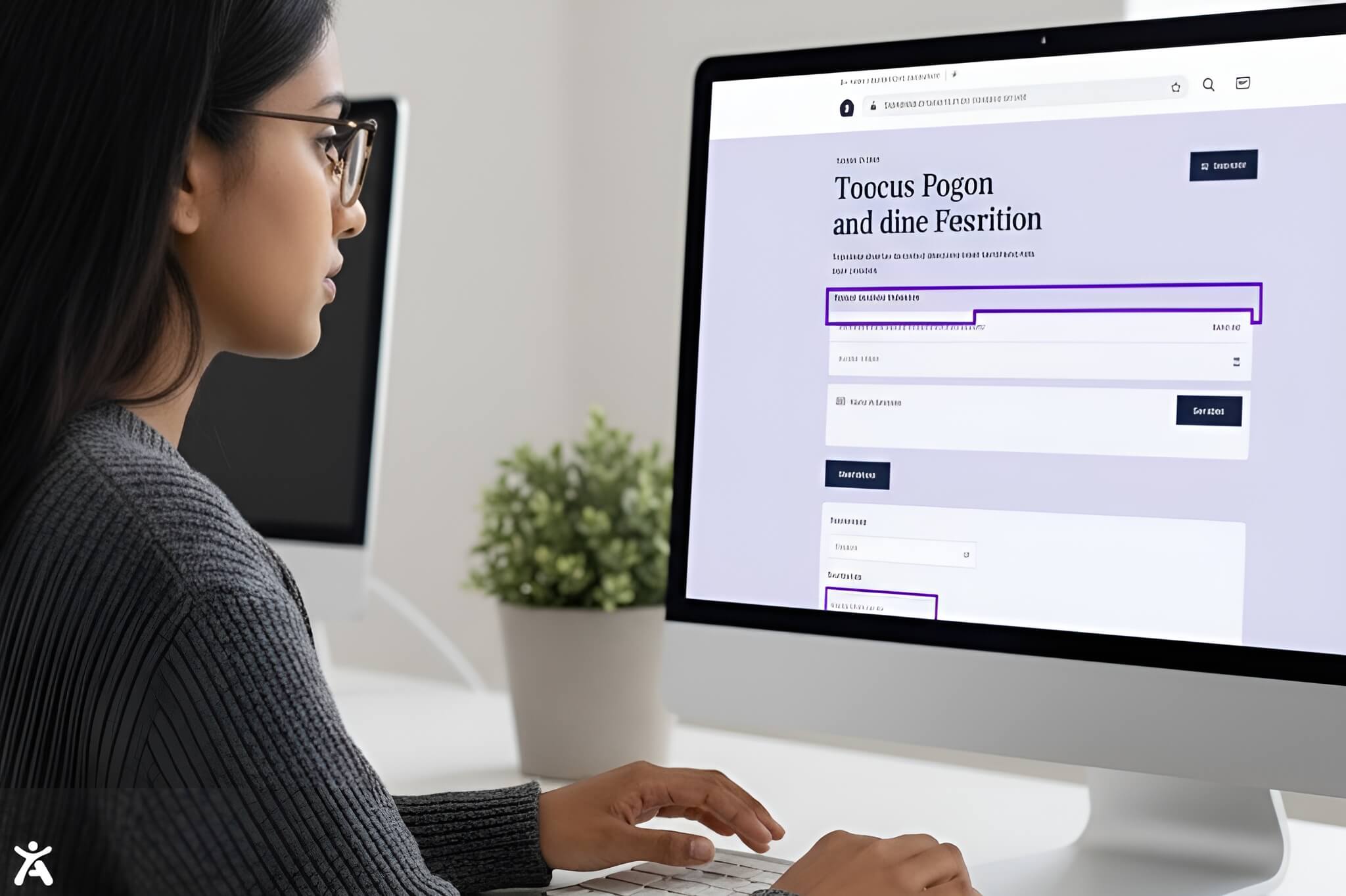
Automation misses context. These quick human checks ensure your site actually works for people using assistive technologies like screen readers.
Keyboard Navigation Test
Put away your mouse. Can you navigate the entire page using only the Tab key?
- Check that you can reach all interactive elements (links, buttons, forms)
- Ensure there is a visible focus indicator (a ring or outline) around the selected element
- Verify that the order makes sense visually
Visual Inspection for Critical Elements
Look at your page layout. Is the text large enough? Is there flashing content that could trigger seizures? Are videos captioned? A quick visual sweep can catch issues that code scanners might miss.
Headings and Structure Review
Headings (H1, H2, H3) are the table of contents for screen reader users. Use a tool (or just look at the code) to ensure you aren’t skipping levels (e.g., jumping from H1 to H4) just for visual styling. The structure must follow a logical hierarchy.
Image Alt Text Spot Check
Hover over your images or use a tool to display the alt attributes. Do they describe the content? If an image says “Sale 50% Off,” the alt text should say “Sale 50% Off,” not “image123.jpg” or “woman smiling.”
Prioritizing Common Quick Win Fixes
Once you’ve identified issues, fix the ones that yield the highest impact for the least effort.
Addressing Missing Alt Text
This is often the #1 failure. Go through your media library or latest posts. Add descriptive text to informative images and mark decorative images as “null” (empty alt text) so screen readers ignore them.
Rectifying Color Contrast Ratios
Text that blends into the background is unreadable for low-vision users and people viewing screens in bright sunlight. Use a Color Contrast Analyzer to ensure a ratio of at least 4.5:1 for normal text. Darken your greys or lighten your background; it’s a simple CSS fix.
Making Hyperlinks Descriptive
“Click here” is useless to a screen reader user scanning a list of links. Change it to be descriptive: “Click here to read our guide” or “Read our guide.” This benefits all users and improves SEO.
Correcting Heading Order
Ensure every page has exactly one H1 (usually the page title) and that subsequent headings follow a logical sequence. This helps users build a mental model of your content organization.
Ensuring Form Field Labels
Every form input needs a label. If a screen reader announces “Edit text” without context, the user won’t know whether to enter their name, email, or phone number. Ensure <label> tags are correctly associated with <input> fields.
Simple Table Fixes
Tables should be used for data, not layout. Ensure your data tables have clear headers (<th>) defined for rows and columns. This allows assistive technology to read the data cell in the context of its header.
Advanced Tools for Deeper Insights
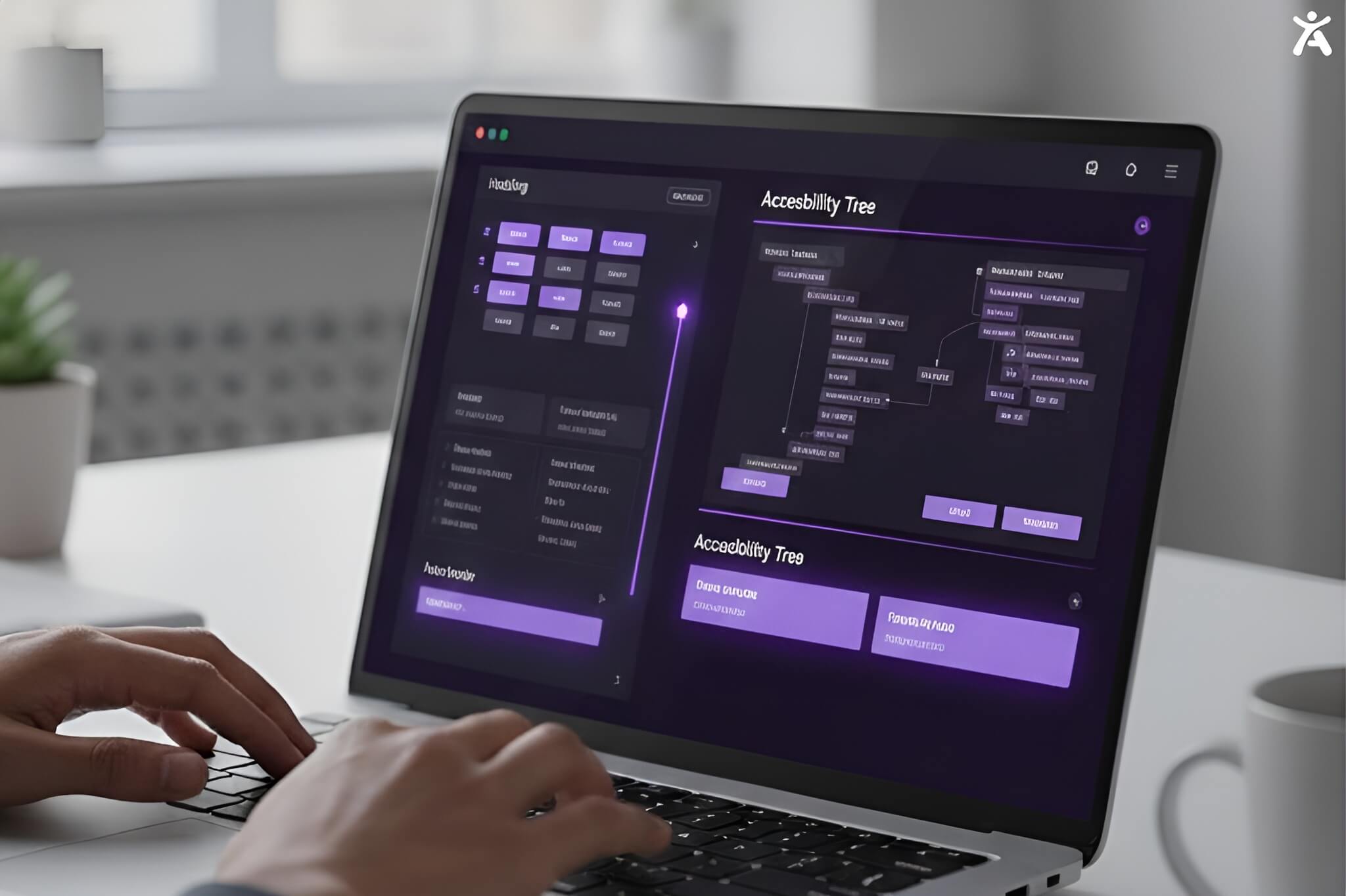
Ready to go beyond the basics? These tools and techniques offer deeper insights without sacrificing too much speed.
Leveraging Browser Dev Tools
Chrome and Firefox have built-in accessibility trees in their DevTools. You can see exactly how the browser exposes your content to assistive technology. This is invaluable for debugging complex widgets or dynamic content.
Quick Screen Reader Emulation
You don’t need to be an expert to do a basic screen reader check. Tools like Accessify (a free extension) allow you to hear your site. Does it announce the content in the right order? Is it annoying to listen to?
Testing with Browser Zoom
Zoom your browser to 200% or even 400%. Does the layout break? Does text overlap? WCAG standards require that content remain readable and functional when resized. This is a crucial test for mobile responsiveness and low-vision accessibility.
Finding Broken Links
Broken links are a frustration for everyone, but they can be a dead end for keyboard users navigating sequentially. Use a free link checker to identify and remove non-HTML resources or dead pathways.
Integrating Fast Accessibility Workflows

Sustainability is key. Accessibility shouldn’t be a one-off project.
Creating a Content Author Routine
Give your marketing team a checklist:
- Did I add alt text?
- Are my headings in order?
- Is my link text descriptive?
- Is the video captioned?
Empowering Development Teams
Integrate automated testing libraries, such as axe-core, into your existing testing frameworks (Selenium, Playwright). This catches accessibility issues before code merges. It keeps your “fast” checks really quick.
Real-time Monitoring and Alerting
For larger sites, consider enterprise tools that offer site-wide monitoring. They check your site regularly. If accessibility scores fall, they alert you. It’s like a smoke detector for digital barriers.
Understanding Compliance Standards
Knowing “why” helps you prioritize “what.”
WCAG: The Foundation
The Web Content Accessibility Guidelines (WCAG) are the gold standard. Aim for Level AA compliance. It’s the globally accepted middle ground that ensures a site is accessible to the vast majority of users.
Addressing Legal Compliance
In the US, Section 508 applies to federal agencies, but ADA standards generally point to WCAG as the benchmark for private businesses. In Europe, EN 301 549 mirrors these standards. Fast checks help you demonstrate a “good faith effort” toward compliance.
The User Experience Benefit
Ultimately, digital accessibility is about people. Clearer contrast helps tired eyes. Captions help people in noisy offices. Good structure helps speed readers. Accessibility improves the user experience for everyone, not just those with disabilities.
When to Seek Deeper Audits
Automated tools are great, but they have limits.
Identifying Complex Issues
Interactive elements need clear ARIA labels. This includes carousels, modal windows, and drag-and-drop interfaces. Automated tools struggle here. If your web page accessibility checker flags complex script errors, it’s time for a deeper look.
Engaging Accessibility Experts
For critical paths (checkout flows, sign-up forms) or high-traffic pages, consider hiring accessibility experts for a comprehensive conformance assessment. They can perform manual evaluations with various assistive technologies that you might not have access to.
Pro Tips for Accessibility
- Don’t rely on overlays: “Quick fix” overlays often interfere with screen readers and don’t provide true compliance
- Mobile test: Don’t forget to test your site on a phone. Touch targets need to be large enough for clumsy thumbs (and users with motor impairments)
- Use grayscale: Turn your monitor to grayscale to see if your site relies solely on color to convey information (e.g., error messages that are just red text)
Final Thoughts
Accelerate your journey to an accessible web today. You can greatly improve your website’s usability in just minutes by using a web page accessibility checker alongside some smart manual checks.
Ready to ensure your website is open to everyone? Start your free accessibility scan now.
FAQs
For quick page checks, Accessify and Microsoft Accessibility Insights are great free options. They run directly in your browser and visualize errors instantly.
No. Automated testing solutions can identify approximately 30% to 50% of accessibility barriers (like syntax errors). Subjective issues, such as alt text quality or logical reading order, require manual human evaluation.
Ideally, you should run a quick check every time you publish new content or update code. For site-wide health, a monthly automated scan combined with a quarterly manual audit of critical pages is a good baseline.
Generally, yes. If your business serves the public, courts now see websites as “places of public accommodation” under the ADA. Proactive accessibility testing helps mitigate legal risk and opens your business to more customers.
Yes, indirectly. Search engines like Google favor websites that offer a great user experience. Many accessibility factors, such as descriptive headings, alt text, and mobile-friendliness, are also direct ranking factors.