
Patient portal accessibility decides whether a patient can log in, book a visit, read results and join a telehealth call without extra help. This checklist walks healthcare product, IT and compliance teams through five portal areas, with a WCAG criterion and a practical fix for each. It is general information, not legal advice.
Why patient portal accessibility needs extra care
Quick answer: test five portal areas, starting with the top barrier in each. Login: password tests with no alternative. Scheduling: calendars that need a mouse. Lab results: tables without proper headers. Video visits: missing or unreviewed captions. Documents and mobile: untagged PDFs and layouts that do not reflow.
Portals combine forms, data tables, live video, PDFs and small screens in one journey, so a single failure can block a care task. According to the W3C WCAG 2.2 Quick Reference, success criteria are grouped under four principles: perceivable, operable, understandable and robust. We use those criteria below.
On the legal side, HHS Section 504 is relevant context for many health organizations, and the ADA.gov web guidance resources are a general starting point. Details such as the required WCAG version, covered entities and dates must be confirmed: [INSERT: confirm current HHS Section 504 web accessibility requirements with legal counsel].
For a wider view beyond portals, read our healthcare website accessibility compliance guide.
If you also serve federal programs, see our Section 508 compliance guide. The table below summarizes the five areas.
| Portal area | Key WCAG criteria | Core fix |
|---|---|---|
| Login and recovery | 3.3.8, 3.3.2, 2.2.1 | Allow paste and password managers, label fields, warn before timeouts |
| Scheduling and reminders | 2.5.7, 2.5.8, 4.1.3 | Offer non-drag options, large targets, announced confirmations |
| Lab results, messaging, downloads | 1.3.1, 1.4.1, 4.1.3 | Real table headers, text flags, tagged PDFs |
| Video visits | 1.2.4, 2.1.1, 4.1.2 | Reviewed captions, keyboard-operable named controls |
| Forms and mobile | 3.3.7, 1.4.10, 1.3.4 | Prefill repeated data, reflow at 320 px, no orientation lock |
Login and account recovery
The newest login rule is 3.3.8 Accessible Authentication (Minimum), a Level AA criterion added in WCAG 2.2. The W3C says a cognitive function test, such as remembering a password or solving a puzzle, must not be required unless an alternative or an assisting mechanism exists. Its notes name password manager support and copy and paste as examples. Our WCAG 2.2 updates for website owners explain the wider changes.
- WCAG check: 3.3.8 Accessible Authentication (Minimum). Fix: never block paste in password or code fields, and consider email link sign-in, which the W3C lists as a sufficient technique.
- WCAG check: 3.3.2 Labels or Instructions and 1.3.5 Identify Input Purpose. Fix: use visible labels and HTML autocomplete attributes for name, email and similar fields.
- WCAG check: 3.3.1 Error Identification. Fix: describe failed sign-ins in text beside the field, not only with color.
- WCAG check: 2.2.1 Timing Adjustable. Fix: warn before a session expires and give at least 20 seconds to extend it with a simple action.
- WCAG check: 1.1.1 for CAPTCHA. Fix: offer a non-visual alternative on recovery pages.
Scheduling and reminders
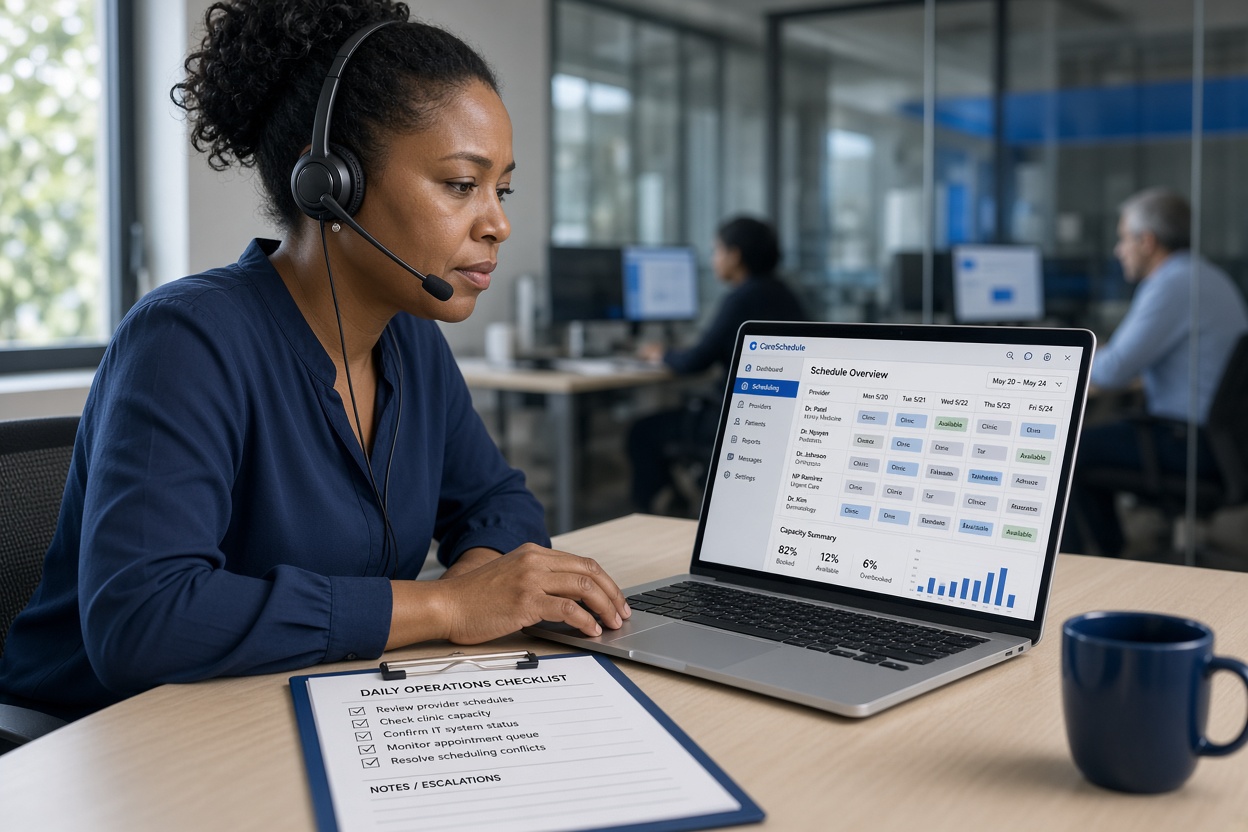
Booking is where mouse-only designs show up, such as drag-to-select calendars and tiny time slots.
- WCAG check: 2.5.7 Dragging Movements (Level AA, new in 2.2). Fix: provide a single-pointer way to pick a date or slot without dragging.
- WCAG check: 2.5.8 Target Size (Minimum), at least 24 by 24 CSS pixels with exceptions. Fix: size and space slot buttons accordingly.
- WCAG check: 1.4.1 Use of Color. Fix: mark unavailable slots with text, not only gray.
- WCAG check: 4.1.3 Status Messages. Fix: announce “appointment booked” with role=status so screen readers hear it without a focus change.
- WCAG check: 3.3.4 Error Prevention. Fix: let patients review and confirm before a cancellation or change is final.
- WCAG check: 2.4.4 Link Purpose. Fix: make reminder links descriptive, such as “Join video visit”, not “click here”.
Lab results and downloads

Results tables
WCAG 1.3.1 Info and Relationships expects structure to be programmatically available. The W3C techniques name table markup, caption elements and the scope attribute for data tables. Fix: use real header cells so a screen reader announces each value with its test name.
Do not flag abnormal values by color alone (1.4.1); add words such as High or Low. For charts, provide a text alternative or long description (1.1.1). On narrow screens, the W3C reflow note allows two-dimensional scrolling for data tables, but keep headers visible and consider a stacked view.
Secure messaging
Label the subject and message fields (3.3.2) and announce “message sent” or “new reply” through a status message (4.1.3). Check that attachment buttons have names (4.1.2).
Downloadable results
For PDFs, the W3C lists techniques for headings, table tags, a document title and a default language. Scanned pages need OCR so the text is real text (1.4.5). Name links clearly, such as “Download lab report (PDF)”.
Example (illustrative only, not real data): an accessible patient portal has a login that accepts a pasted password, a scheduling view that works by keyboard with a text confirmation, and a results page with a captioned table and a labeled, tagged PDF download. Each part maps to a criterion above.
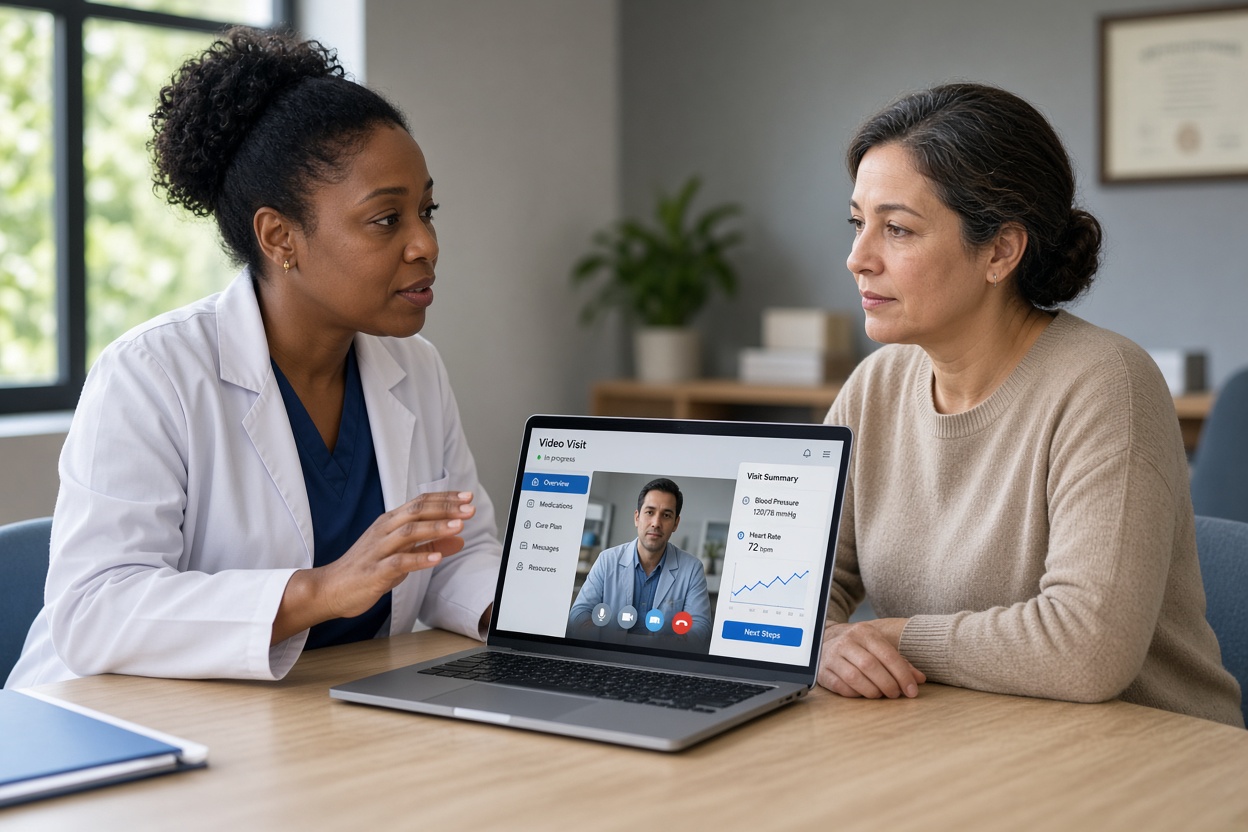
Video visits and captions
For live visits, WCAG 1.2.4 Captions (Live) is a Level AA criterion, and the W3C notes captions may come from a real-time text service. Prerecorded education videos fall under 1.2.2 (Level A) and 1.2.5 Audio Description (Level AA).
According to WebAIM’s guide to captions and transcripts, captions should be synchronized, equivalent and accessible. They should identify speakers, include meaningful non-speech sounds and not cover essential visuals. WebAIM adds that automatic captions should be reviewed and tested in the player your audience uses, including the control that turns them on.
- Controls: 2.1.1 Keyboard and 2.1.2 No Keyboard Trap. Fix: operate join, mute and camera buttons by keyboard and let focus leave the video panel.
- Names: 4.1.2 Name, Role, Value. Fix: give custom buttons accessible names and states.
- Focus: 2.4.11 Focus Not Obscured (Minimum). Fix: keep floating call toolbars from hiding focused items.
- Audio: 1.4.2 Audio Control. Fix: never autoplay sound without a pause control.
- Transcripts: WebAIM recommends both captions and a transcript for most web video.
If a third party supplies the video tool, request its accessibility documentation and test it inside your own portal.
Documents, forms and a patient test plan
Intake forms carry the most risk. Use labels (3.3.2), suggest corrections (3.3.3) and avoid asking for the same data twice in one process (3.3.7 Redundant Entry). PDF forms need labeled, named fields.
For mobile layouts, check 1.4.10 Reflow (no two-dimensional scrolling at 320 CSS pixels, with exceptions), 1.3.4 Orientation (do not lock portrait or landscape), 1.4.4 Resize Text (up to 200 percent) and 1.4.12 Text Spacing.
A simple test plan
- Complete login, booking and a results download using only a keyboard.
- Repeat with a screen reader, listening for table headers and status messages.
- Zoom to 200 percent and narrow the window to 320 CSS pixels.
- Join a test video visit and review captions in the actual player.
- Open every PDF and check title, headings and tables.
How Accessify compares for healthcare portals
Accessify is an AI-powered accessibility widget aimed at ADA, WCAG 2.2 and EAA needs, with automated remediation. It suits simpler sites and storefronts that need fast coverage. Complex portals still need manual testing and fixes in code, and a widget alone does not guarantee legal compliance. A manual audit, managed service or enterprise platform may fit large, custom portals better. UserWay, accessiBe, AudioEye and Level Access each publish their own offerings, so compare them directly and check each vendor’s site for current pricing.
| Question | Accessify | UserWay, accessiBe, AudioEye, Level Access |
|---|---|---|
| Approach | AI-powered widget with automated remediation | Confirm on each vendor’s public page |
| Setup | 2-minute install on Shopify, WordPress and other platforms | Confirm on each vendor’s public page |
| Starting price | From $19/month (check the vendor’s site for current pricing) | Confirm on each vendor’s public page |
| Healthcare portal features | [INSERT: Accessify healthcare-specific features, if any] | [INSERT: one verified strength per vendor from its public page] |
Summary checklist
Use this list to track patient portal accessibility work across releases.
- Login accepts paste and password managers; errors are described in text (3.3.8, 3.3.1).
- Session timeouts warn and allow extension (2.2.1).
- Scheduling works without dragging; targets are at least 24 CSS pixels (2.5.7, 2.5.8).
- Booking and messaging confirmations are announced (4.1.3).
- Lab tables use real headers; flags use text, not only color (1.3.1, 1.4.1).
- Live and recorded video have reviewed captions, plus transcripts where useful (1.2.4, 1.2.2).
- Video controls work by keyboard and have names (2.1.1, 4.1.2).
- PDFs are tagged, titled and not scanned images (1.4.5).
- Forms avoid repeat entry (3.3.7); pages reflow at 320 CSS pixels (1.4.10).
- Legal requirements, including HHS Section 504 details, confirmed with counsel.
Frequently Asked Questions
Do patient portals have to meet WCAG?
WCAG is a technical standard, not a law, so the legal answer depends on which rules apply to your organization. Health organizations may fall under ADA and HHS Section 504 obligations, and details such as the required WCAG version and dates should be confirmed with counsel. This is general information, not legal advice.
What is the most common portal barrier?
No reference we used ranks portal barriers, so test your own portal rather than trusting a generic answer. Still, login steps that depend on remembering a password (WCAG 3.3.8) and unlabeled form fields (3.3.2) are sensible first checks because every patient passes through them. A keyboard-only run can reveal many issues.
How do I make lab results accessible?
Mark up results as a real table with header cells, a caption and scope attributes, so screen readers announce each value with its test name. Do not rely on color alone for abnormal flags: add text such as High or Low. Offer a downloadable report that is tagged and titled.
Do telehealth visits need captions?
To meet WCAG, yes. Success criterion 1.2.4 requires captions for live audio in synchronized media at Level AA, and 1.2.2 covers prerecorded media at Level A. Legal requirements for your organization should be confirmed with counsel. Automatic captions are a useful start but, per WebAIM, should be checked by someone who understands captioning standards.
Where do I start?
Start with the journey patients take most: login, booking and viewing results. Run a keyboard-only pass, then a screen reader pass, then check 200 percent zoom and a 320 pixel width. Log failures against WCAG criteria, fix the highest-impact ones first, and confirm any legal requirements with counsel.
Want help finding and fixing common issues on your site? Explore Accessify at accessify.app.